AI agents: discovering the MCP protocol
- Following chatbots, AI agents: specialized LLMs that cooperate to manage a workflow.
- The MCP (Model Context Protocol) standardizes the access of an LLM to third-party tools.
- Practical demonstration of an MCP server managed by an LLM.
- Hardware for local AI is gradually becoming accessible.
Introduction
Since its popularization with the arrival of ChatGPT at the end of 2022, AI has continued to be adopted and developed.
After the prompt wars, it's time to connect these famous LLMs (Large Language Models) to our everyday tools.
This is the era of AI agents. Behind this new buzzword lies the desire to leverage the capabilities of LLMs to build specialized AIs, capable of working in synergy to manage an entire workflow.
Imagine being able to manage an entire CI/CD pipeline entirely in natural language. One AI agent could, for example, be responsible for retrieving your source code from GIT, submitting it to a code quality analysis and vulnerability scan, and potentially delegating the identified corrections to another AI specialized in code.
Once this step is complete, another AI would take over compiling the code, then sending it to an artifact manager. Again, an AI could take over, executing the code in a test environment, and then verifying its proper functioning before suggesting to another AI that it deploy the binaries to production, or even create a container.
To achieve this result, two challenges must be addressed:
- Allowing AIs to communicate with each other: for this, it is necessary to establish a common and standardized communication protocol, treated in the same way by each AI.
- Enabling AIs to communicate with the tools at their disposal. In our example, this would involve providing AIs with the ability to interact with applications such as SonarQube (or Oasis), Gitlab, Jenkins, Kubernetes… A plugin system is then needed to allow AIs to connect to the tools and identify the list of actions that can be performed.
Several standards are emerging on the market, but one of them is increasingly talked about: MCP for Model Context Protocol.
The MCP protocol
Click the image to enlarge.
Origins
MCP was proposed by Anthropic at the end of 2024. It was presented as an open standard that allows LLMs to interact dynamically with tools, files, and databases in a uniform and interoperable manner.
Anthropic is an AI company founded in 2021 in San Francisco. It is primarily known for its LLM model Claude, a competitor to ChatGPT. The company stands out for its focus on transparency and the safety of AI, with strong community involvement. While it remains the main maintainer of the MCP GitHub project, it encourages related developments and keeps the source code open.
Principles
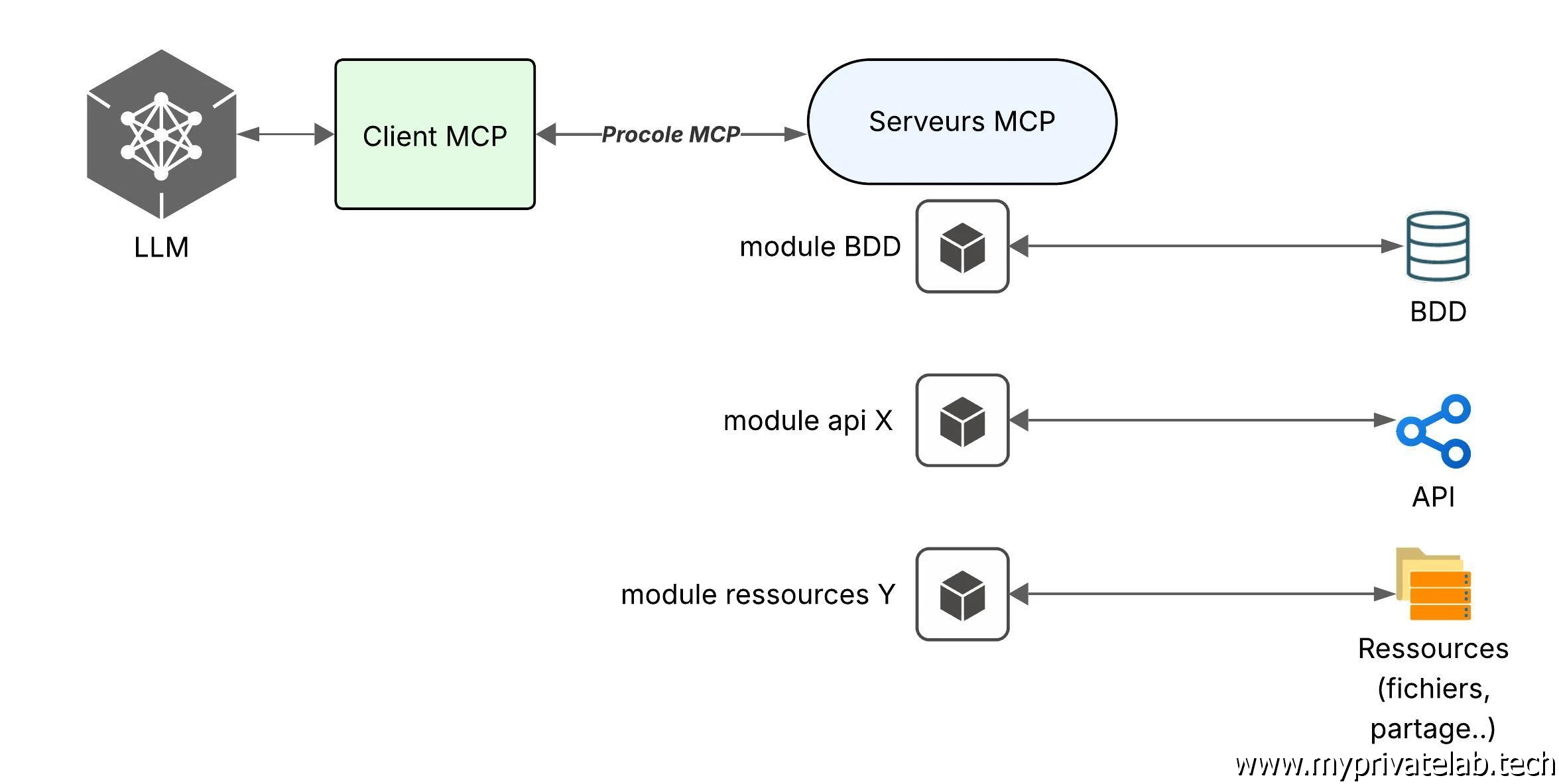
MCP is based on a client-server architecture
Click the image to enlarge.
A client (the execution of an LLM model) connects to an MCP server. This MCP server announces its capabilities, i.e., the possible actions on associated tools, to the client. The client records these capabilities within the model.
Subsequently, the user can request the model, which may decide which tools it needs and then transmit a request to the MCP server. The server executes the requested action and returns the result.
Each MCP server can be accompanied by a module, with each module being associated with specific capabilities. Each module comes with its own configuration and potential permissions.
The client can access each MCP server based on the requests displayed by the client.
Demonstration
Online mode
One of the quickest ways to try out MCP is to use Claude Desktop. This is Anthropic's AI desktop application.
It is available for several platforms; in my case, I will install it on Windows.
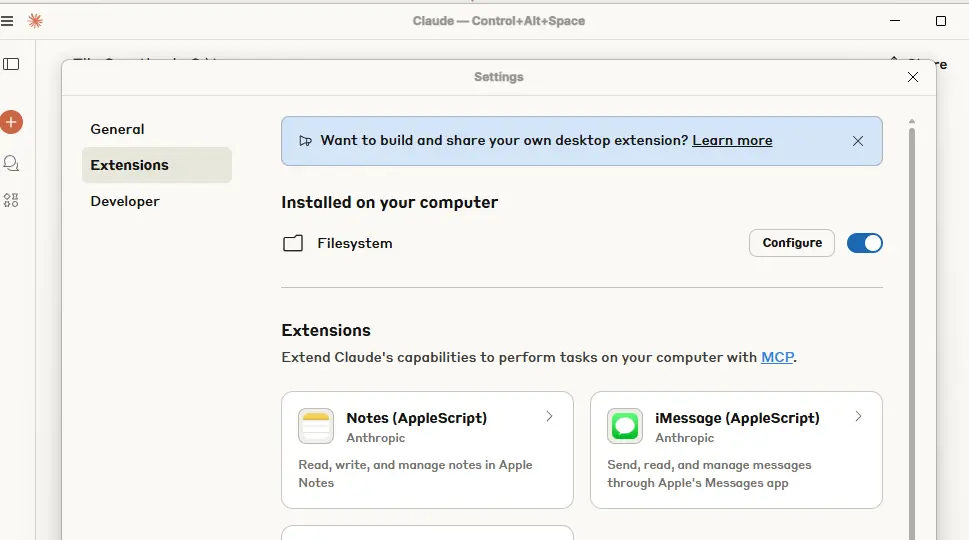
By going into the advanced features of the product, you can enable the integrated MCP server and use the provided modules, such as the one that allows the AI to interact with your file system.
You simply need to specify the locations in your directory structure where the AI will be allowed to operate.
Click the image to enlarge.
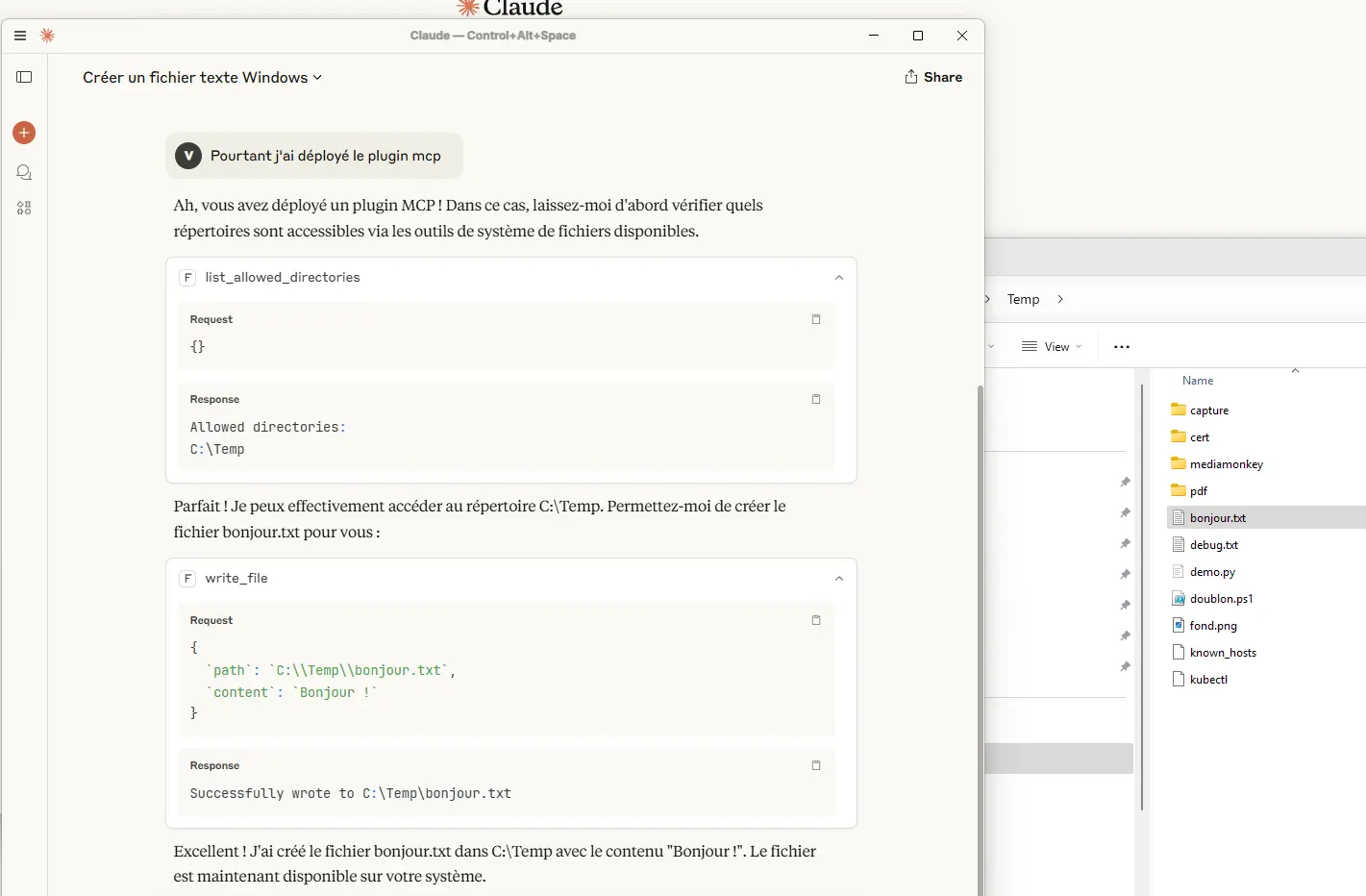
Once the configuration is set up, you can ask the AI to access your file system, within the authorized locations.
For example, you can ask it to create a bonjour.txt file in c:\temp.
Click the image to enlarge.
This is very basic, but it's just the tip of the iceberg. Many other MCP modules are available, and one of the most practical tools for finding and configuring them is OneMCP.
OneMCP is available for PC and Mac, and it is very easy to install.
When executed, OneMCP will reference all the MCP servers it knows about. It can retrieve them, provide you with a configuration GUI, and allow you to run them.
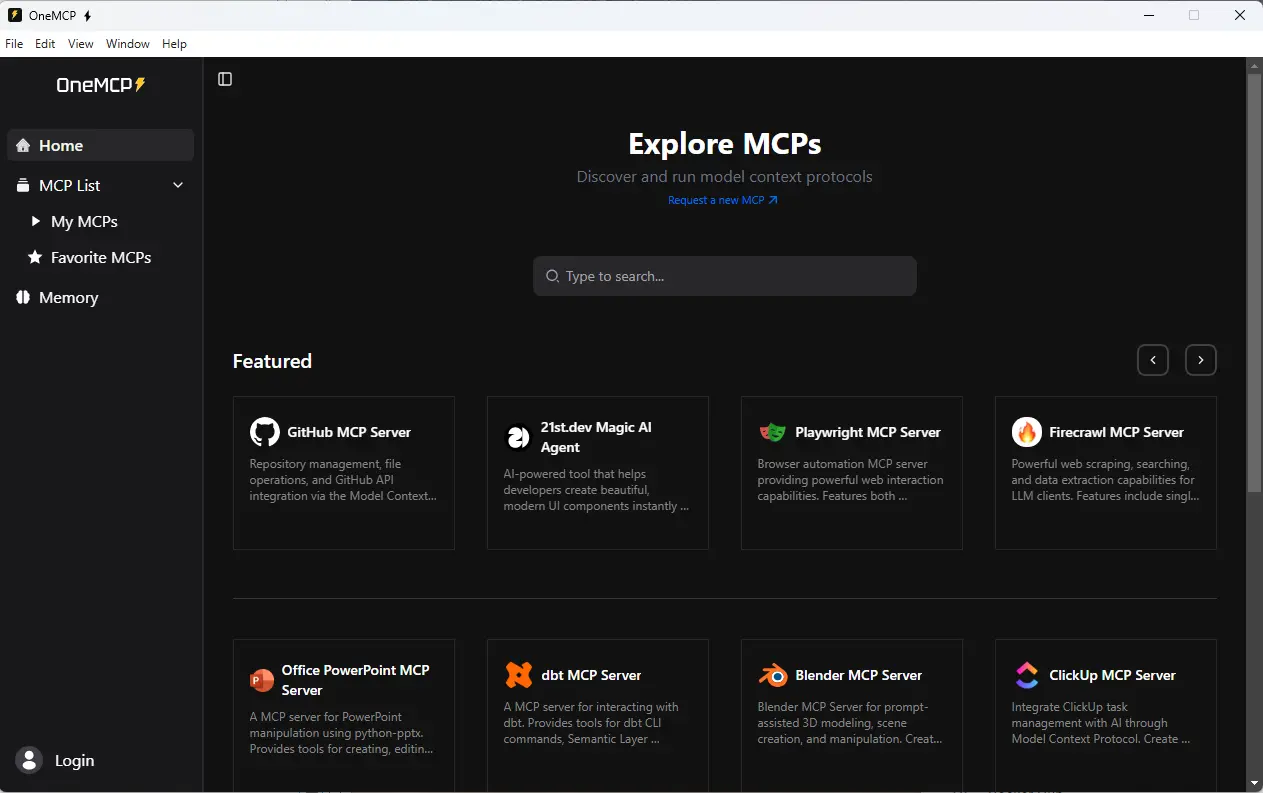
Click the image to enlarge.
Some modules require additional prerequisites, such as libraries or complementary binaries; OneMCP guides you through this process.
This is the case for the module that controls PowerPoint, for example.
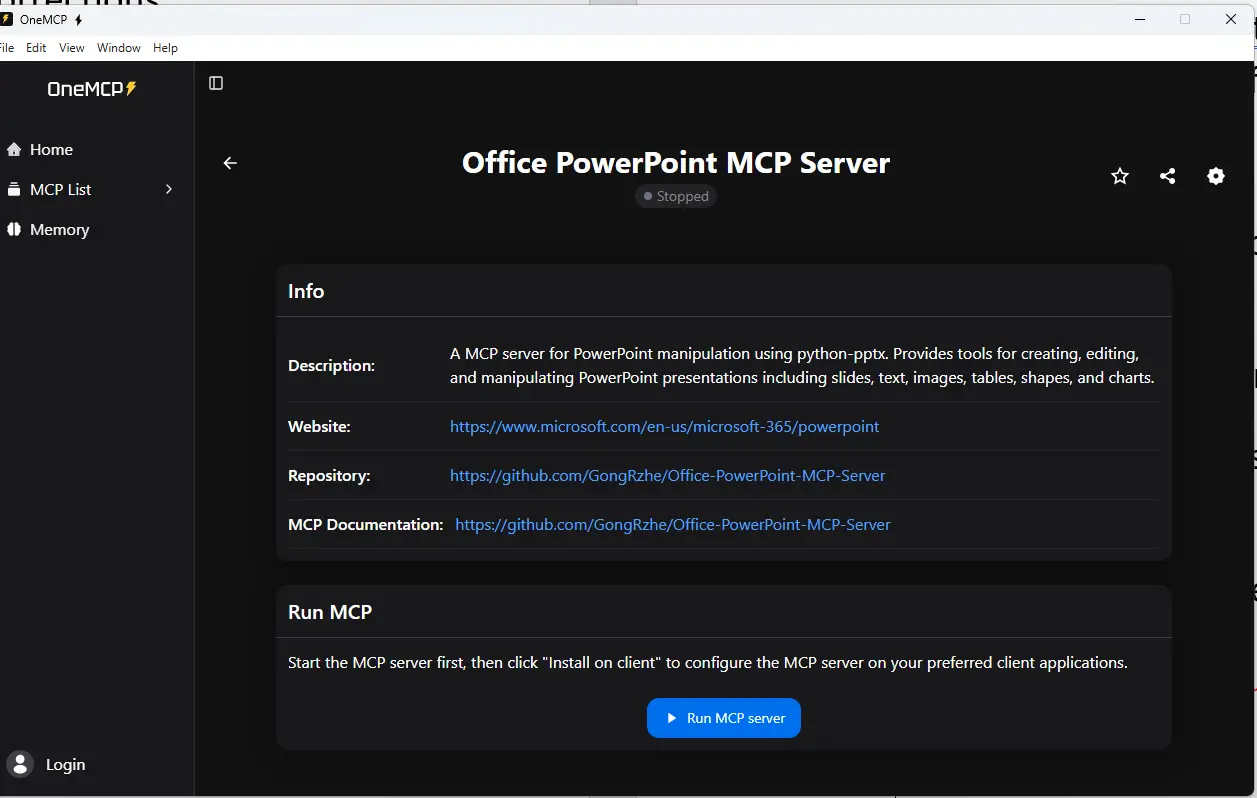
Click the image to enlarge.
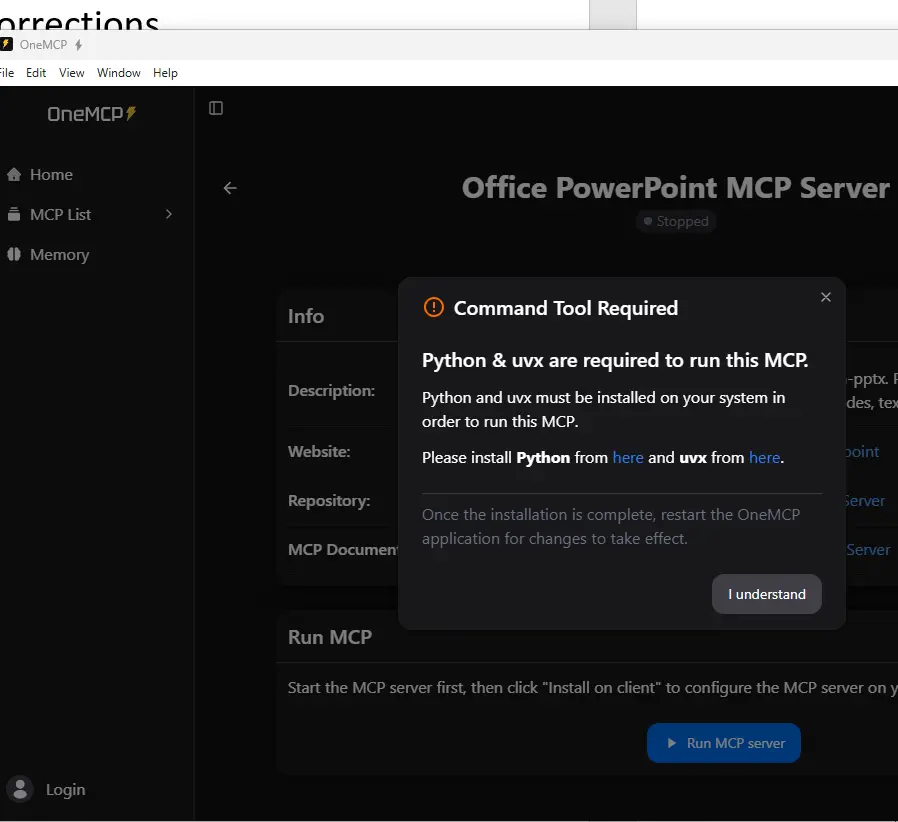
Click the image to enlarge.
However, once these prerequisites are met, you can map Claude Desktop to OneMCP to use this new module through the associated MCP server.
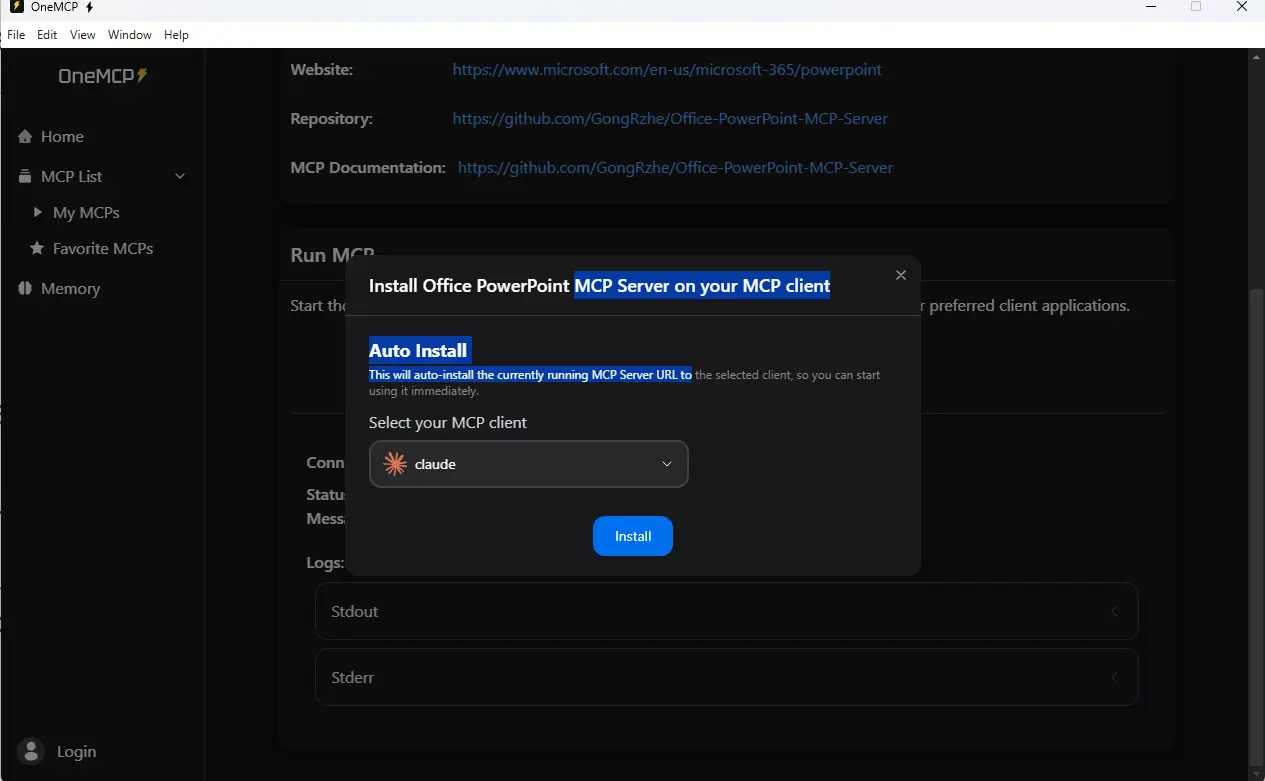
Click the image to enlarge.
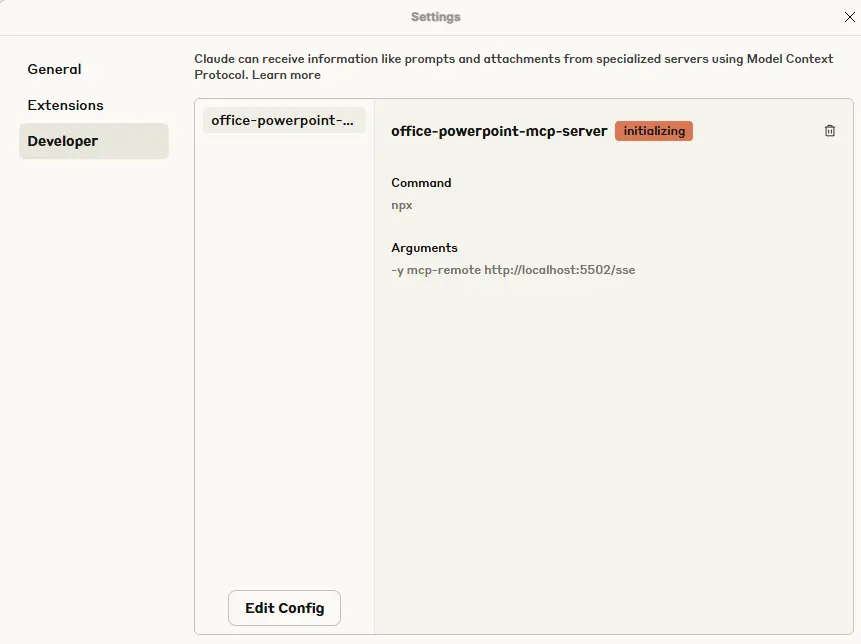
Click the image to enlarge.
Let's try asking it to create a PowerPoint presentation on MCP, for example.
The magic happens quickly, and we see the AI thinking about the topic. You may need to validate some access permissions during the process.
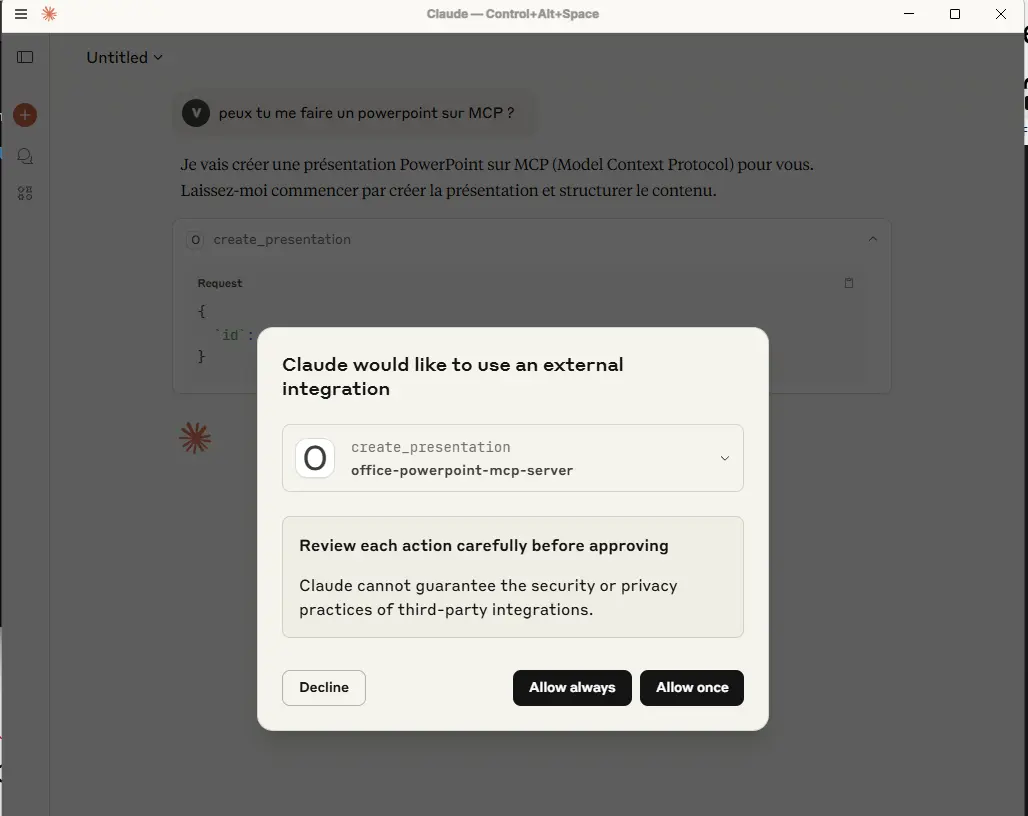
Click the image to enlarge.
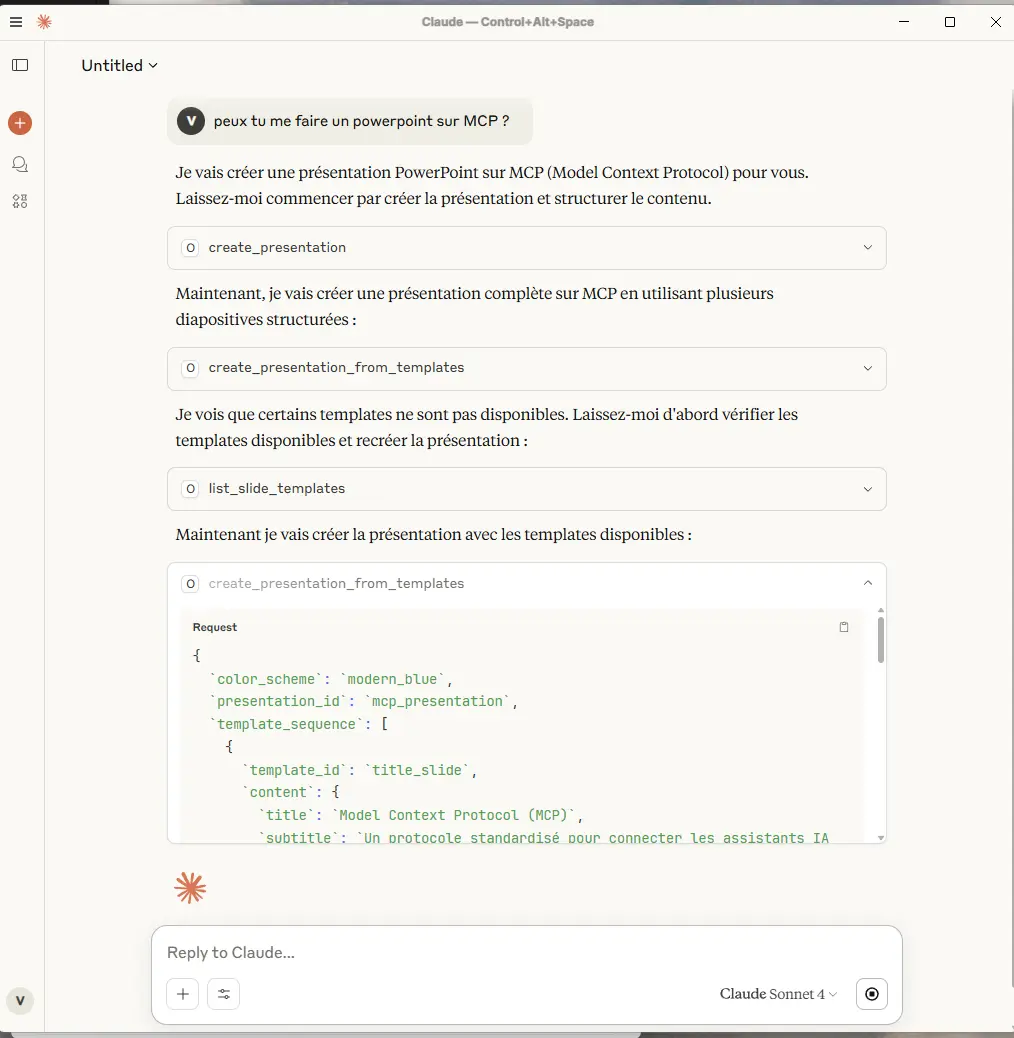
Click the image to enlarge.
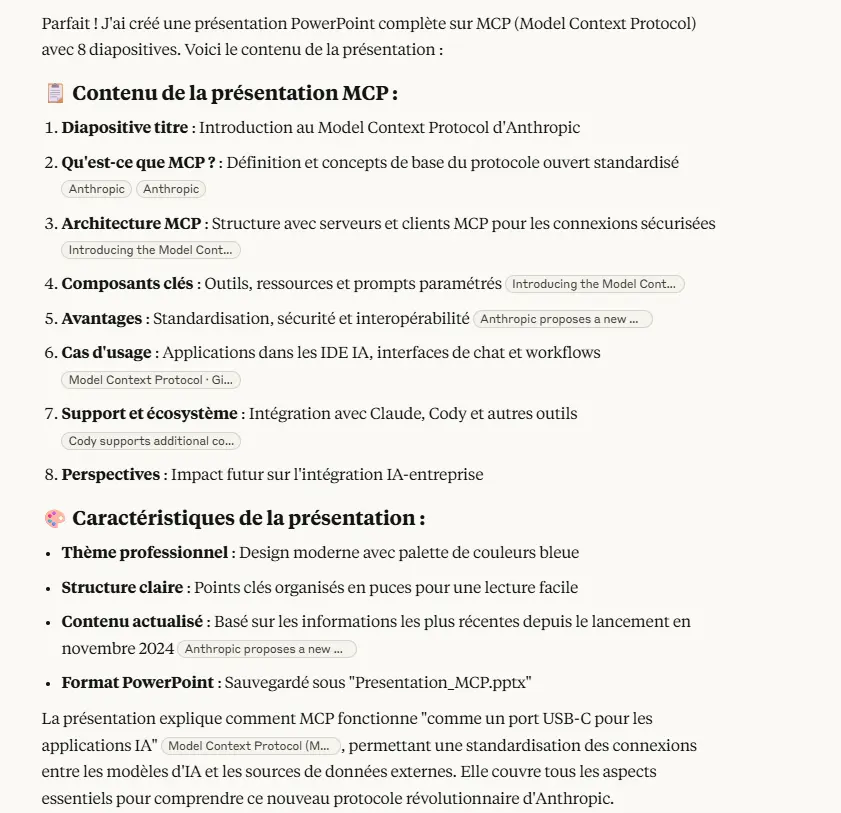
Click the image to enlarge.
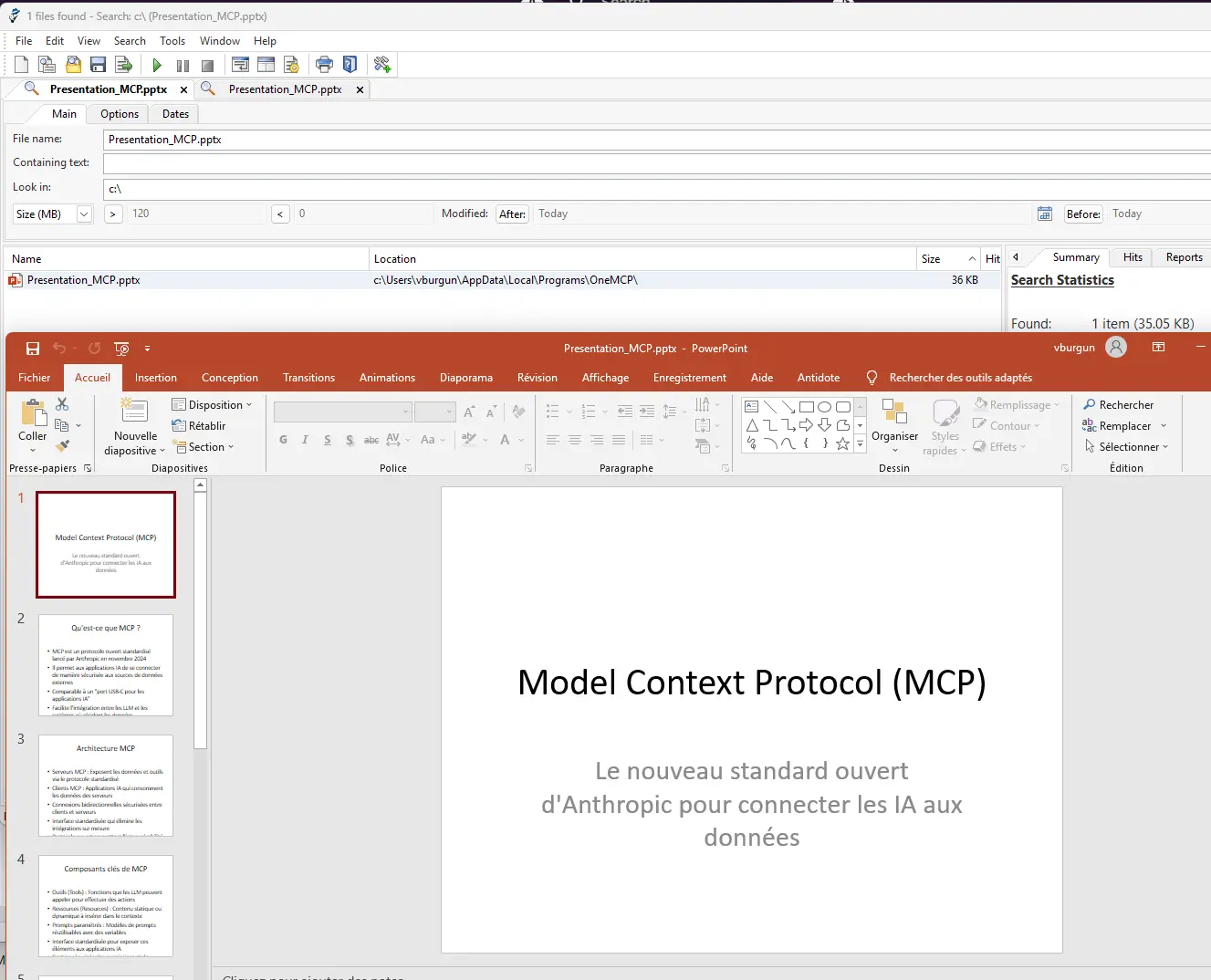
In the end, you get a slideshow generated on the subject... admittedly a bit bland, but the content is there.
Click the image to enlarge.
And above all, if you have a Claude subscription, you can go further by sending it more requests to improve the file and enrich its content.
Offline mode
At this stage, there's already a lot that can be done. The disadvantage of this integration is using an online AI.
This isn't always possible in companies, and some sensitive activities require not relying on an LLM model running on remote servers.
Since MCP is open, nothing prevents implementing it on local AIs... like with Ollama 😊!
I have already introduced this fantastic tool called Ollama in this article. Feel free to read it; I describe how to install it under Kubernetes and how to use a GPU for running open-source LLM models.
The idea is to start from my current Ollama installation on my cluster.
Today, I use Ollama through the OpenWebUI GUI, which is also presented in this same article.
This allows me to have a "light" equivalent of ChatGPT at home, with the ability to compare several LLM models with each other.
I have never had to open access to Ollama's API outside of my cluster. But for this article, I will need to create an additional ingress that exposes the Ollama API on my network so that it can connect to an MCP server.
The goal is not to describe the related K8S configuration in detail. Instead, I suggest you explore my site to learn more about Kubernetes and how to make applications accessible via service and ingress objects.
For now, I will simply create an ingress associated with a certificate to expose the Ollama API on the internal URL https:\\ollama.coolcorp.priv, so that the LLMs hosted on Ollama can be queried from my network.
---
apiVersion: networking.k8s.io/v1
kind: Ingress
metadata:
  name: ing-ollama-default
  namespace: prd-mygptgpu-lan
  labels:
    environment: prd
    network: lan
    application: mygpt
    tier: ollama
  annotations:
    traefik.ingress.kubernetes.io/router.entrypoints: web,websecure
    ingressClassName: traefik-lan
    traefik.ingress.kubernetes.io/router.tls: "true"
spec:
  ingressClassName: traefik-lan
  tls:
  - hosts:
    - ollama.coolcorp.priv
    secretName: sec-ollama-cert
  rules:
  - host: ollama.coolcorp.priv
    http:
      paths:
      - path: /
        pathType: Prefix
        backend:
          service:
            name: svc-ollama-default
            port:
              number: 11434
---
apiVersion: cert-manager.io/v1
kind: Certificate
metadata:
  name: cert-ollama-default
  namespace: prd-mygptgpu-lan
  labels:
      environment: prd
      network: lan
      application: mygpt
      tier: ollama
spec:
  dnsNames:
    - ollama.coolcorp.priv
  commonName: ollama.coolcorp.priv
  secretName: sec-ollama-cert
  privateKey:
    algorithm: RSA
    size: 4096
  issuerRef:
    name: clusterissuer-acme2certifier
    kind: ClusterIssuer

Click the image to enlarge.
If this part is unfamiliar to you, know that it is entirely possible to install Ollama locally on your workstation. You can follow the rest of the tutorial even with an Ollama instance listening on your localhost
Originally, I wanted to use a containerized MCP server to integrate it into my K8S cluster. The idea was to have a triad: Ollama, OpenWebUI, and an MCP Server, where I could interact with the LLM model of my choice hosted on Ollama through the UI of OpenWebUI, with the MCP server being used as needed.
Unfortunately, I couldn't find any MCP servers compatible with this use case... or at least, I wasn't able to implement what I wanted given my limited skills.
Tiny Agent
However, I evaluated the integrated MCP function in Tiny Agent from Hugging Face.
Hugging Face is a French-American company founded in 2016 in Paris (but its current headquarters are in New York). It specializes in manipulating LLMs by designing and offering many open-source Python libraries (Transformers) to simplify the use of models like GPT, LLaMA, Mistral...
It also provides datasets for training AI. Hugging Face also offers hosting services for publishing and testing around LLMs.
It is a company with a strong community vision that has set itself the mission of making AI more accessible and open.
It offers in its collection of tools an agent compatible with MCP called Tiny Agent.
In fact, the Tiny agent includes Hugging Face's inference client with an MCP extension. This allows it to run MCP servers with associated modules.
Tiny Agent is natively offered in JS, but a Python extension is available to use it from the command line on your workstation.
In Tiny Agent's documentation, you can see a reference to a server mode through the serv parameter.
This is what I tried to do by containerizing the application using a simple Docker file
FROM node:20-slim

# Définir le répertoire de travail
WORKDIR /app

# Installer le CLI Tiny Agents
RUN npm install -g @huggingface/[email protected]

# Copier le fichier de config (ou monté plus tard via ConfigMap)
COPY agent.json ./agent.json

# Port d'exposition du serveur HTTP
EXPOSE 8000

# Commande par défaut pour lancer l'agent
CMD ["tiny-agents", "serve", "/app"]
Unfortunately, as of the writing of this article and in version 0.2.3 of Tiny Agent, this mode is not supported.

Click the image to enlarge.
This requires interaction with the GUI of the machine on which Tiny Agent is running, making it incompatible in its current state with a Kubernetes deployment.
However, this is not a blocker for testing the product. We can actually rely on the Python module and try using it from your Windows PC. We will simply configure Tiny Agent to use the Ollama API, which has just been made accessible through an ingress for controlling our chosen LLM.
To simplify, Tiny Agent will take on the role of Claude Desktop and OneMCP from the previous example, except that instead of sending requests for processing to Anthropic's servers, it will relay them to Ollama.
To begin, you need to deploy the prerequisites on your machine.
The commands below are for Windows 11, but you can use other operating systems, such as macOS or Linux.
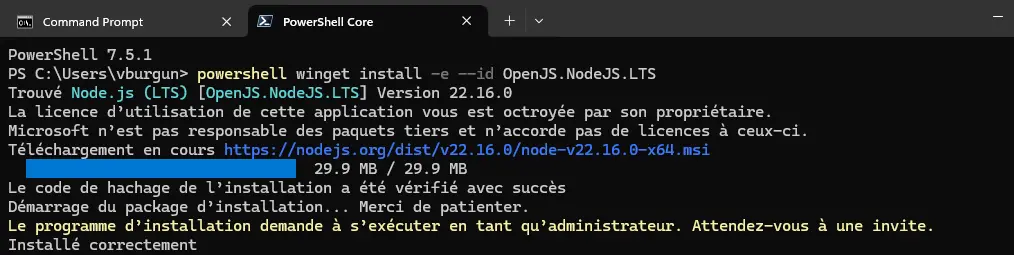
You need to install NodeJS.
powershell winget install -e --id OpenJS.NodeJS.LTS
Click the image to enlarge.
Next, we retrieve the integration with Python (which of course requires having Python installed on your machine: version 3.10 or later).
pip3 install “huggingface_hub[mcp]>=0.33.0”

Click the image to enlarge.
Before running the tiny-agent command, we will prepare its configuration.
Everything goes through an agent.json file.
Here is a complete example.
{
  "model": "qwen3:8b",
  "endpointUrl": "https://ollama.coolcorp.priv/v1",
  "servers": [
    {
      "type": "stdio",
      "config": {
        "command": "npx",
        "args": ["@playwright/mcp@latest"]
      }
    },
       {
      "type": "stdio",
      "config": {
        "command": "npx",
        "args": [
          "@modelcontextprotocol/server-filesystem@latest",
          "D:\\"
        ]
      }
    },
    {
      "type": "stdio",
      "config": {
        "command": "npx",
        "args": [
          "@modelcontextprotocol/server-filesystem@latest",
          "M:\\Films"
        ]
      }
    },
    {
      "type": "stdio",
      "config": {
        "command": "npx",
        "args": ["mcp-server-kubernetes"]
      }
    }
  ]
}
We can break down the sections.
First, we specify the URL of our Ollama instance, indicating the LLM model that we want to use.
  "model": "qwen3:8b",
  "endpointUrl": "https://ollama.coolcorp.priv/v1",
(If you have installed Ollama locally, you only need to point to http://localhost:11434/v1).
Then, we create a section for each MCP server that we want to load.
For example, I will reuse the integration with the filesystem. We can create multiple configurations per target location with which we want our AI to be able to interact (in my case, D:\ and M:\Films).
       {
      "type": "stdio",
      "config": {
        "command": "npx",
        "args": [
          "@modelcontextprotocol/server-filesystem@latest",
          "D:\\"
        ]
      }
    },
    {
      "type": "stdio",
      "config": {
        "command": "npx",
        "args": [
          "@modelcontextprotocol/server-filesystem@latest",
          "M:\\Films"
        ]
      }
    },
I am also adding the MCP Playwright module for controlling a browser.
      "type": "stdio",
      "config": {
        "command": "npx",
        "args": ["@playwright/mcp@latest"]
      }
Let's not stop there; let's add the MCP module for controlling a Kubernetes cluster 😊.
 {
      "type": "stdio",
      "config": {
        "command": "npx",
        "args": ["mcp-server-kubernetes"]
      }
    }
To get a list of all potential MCP servers, you can take a look here. It is certainly less "sexy" than OneMCP, but just as powerful.
Be careful, each MCP module may come with its own configuration that needs to be placed in the agent.json configuration file.
Once the configuration is complete, you can run the agent by specifying the location of the configuration file.
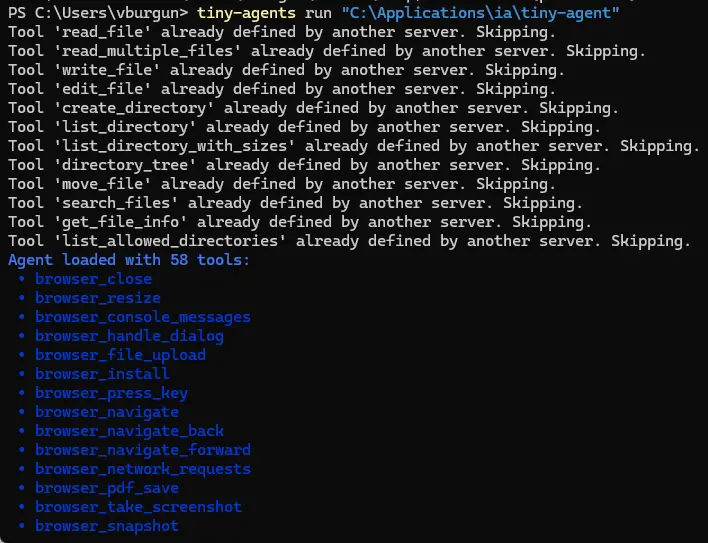
tiny-agents run "C:\Applications\ia\tiny-agent
Upon startup, tiny-agent will list all possible actions specific to the MCP modules.
Click the image to enlarge.
You can therefore start experimenting 😊.
For example, we can go back to creating a file on the filesystem.
As soon as the request is made, the agent processes it, using Ollama and thus the GPU of the Kubernetes node where Ollama is running.
In my example, I chose the LLM qwen3:8b. This is an open-source model developed by Alibaba and known for its optimization. We are using the version with 8 billion parameters (almost the maximum usable for a GPU with 12 GB of vRAM).
You can see that the creation of my file was successful.
Similarly, I can query the agent to obtain information about the contents of a directory.
The proof is that the MCP server integrated into Tiny Agent is functional and that everything happens on my network, without any involvement from third parties.
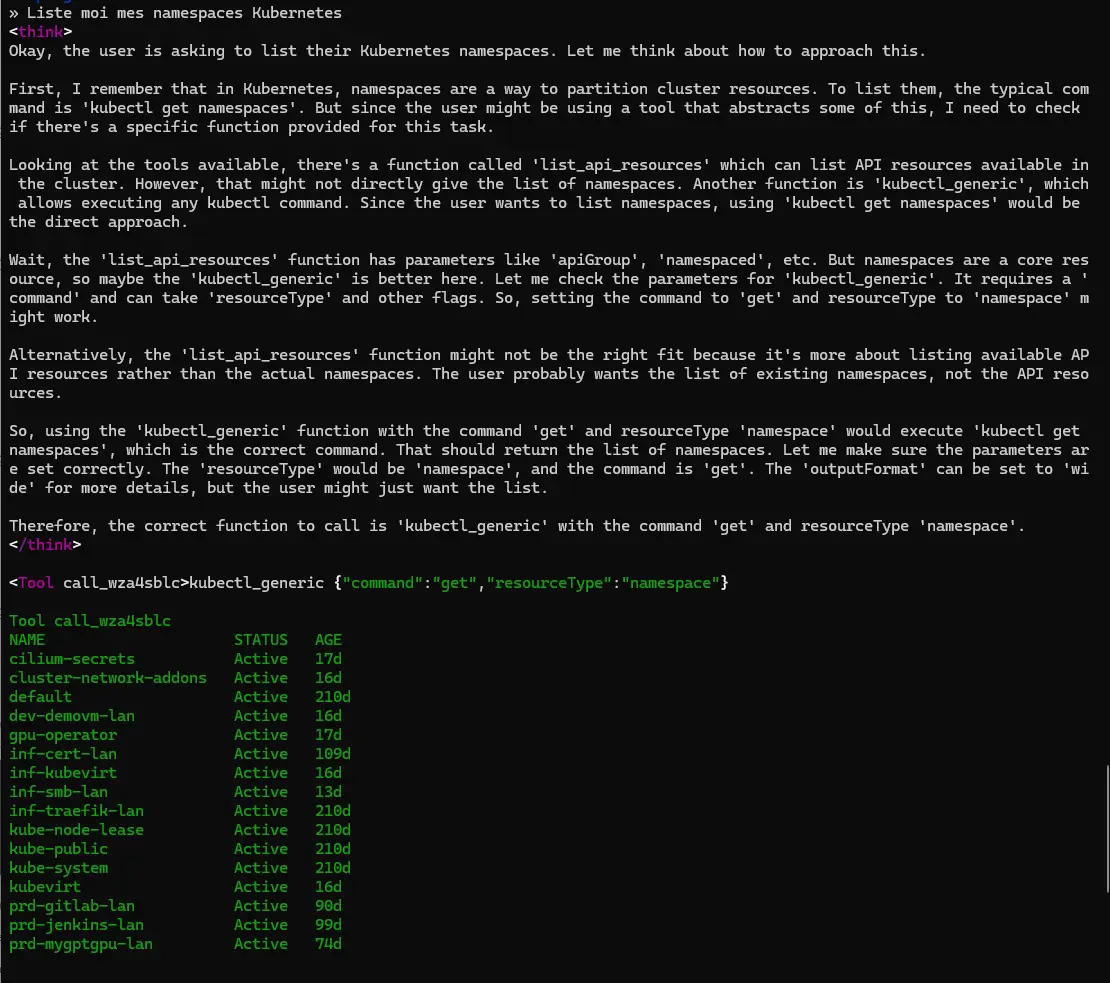
Let's continue with, for example, a request to list my namespaces in my K8S cluster since I have loaded the K8S MCP module.
Click the image to enlarge.
This also works.
If we continue with browser manipulation, we will find that the experience is less conclusive.
Yes, I can make the agent launch my browser and start performing actions in it, but quickly, the AI agent relinquishes control or gets lost in its actions.
The reason for this is the limited resources available in my lab. The GPU underlying Ollama is a modest Nvidia 3060TI with 12 GB of vRAM, which limits the size of the LLM models I can use.
I tried to modify my configuration file agent.json to ask tiny agent to use a more robust model with 24 billion parameters. However, in this case, even a simple "hello" through the prompt only responds after several minutes.
I have already encountered this type of problem in my previous articles on AI. For MCP, the power of the LLMs required depends on the modules used and the actions to be performed. For example, it would be impossible for me to recreate the PowerPoint example with my current hardware.
Conclusion
MCP is clearly a standard that is being widely adopted and which promises great things for AI. It is not the only one on the market, and other protocols, such as A2A (Agent2Agent), which are more focused on communication between AIs, are preparing the ecosystem of AI agents. MCP already stands out due to the many modules available.
The experience with online services is already interesting, while using it locally is a bit more complex.
But things are evolving rapidly. The tools are improving, which makes the user experience more pleasant. Furthermore, advances in hardware will certainly make the use of large LLM models more efficient, even locally.
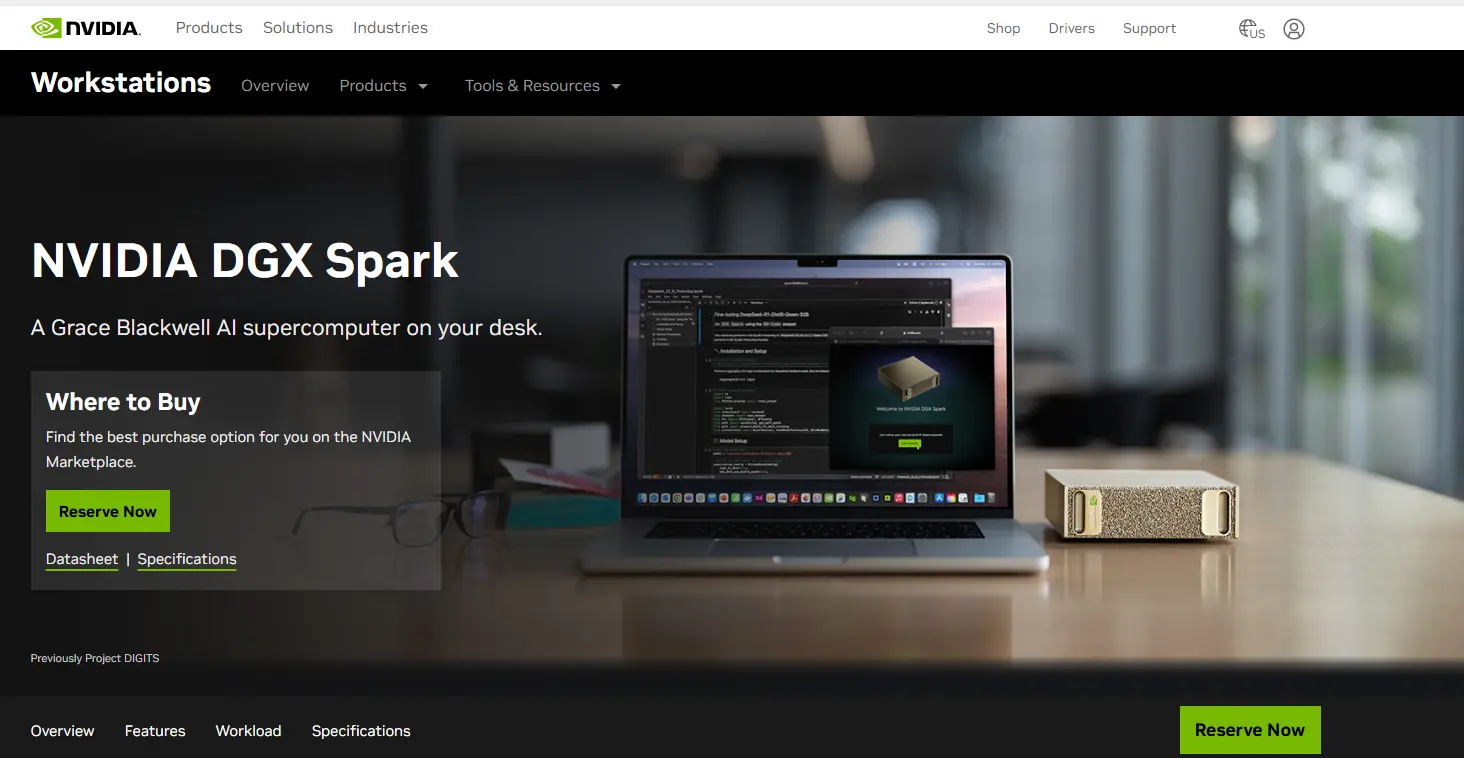
NVIDIA has already announced its GB10 chip, based on ARM architecture and in partnership with Mediatek, promising the execution of LLM models with up to 200 billion parameters in a mini PC format.
Click the image to enlarge.
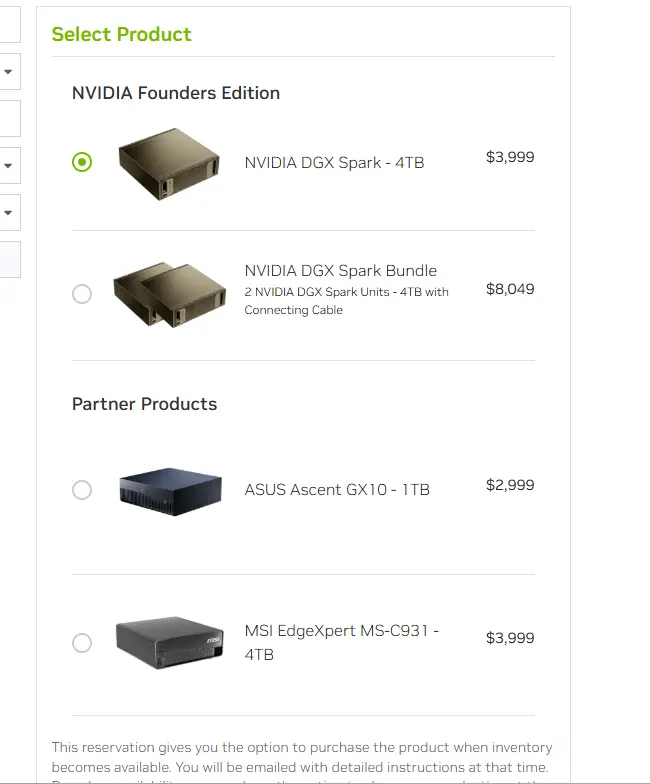
Asus and MSI are also involved with their own product based on the chip, with purchase prices starting at $3000. This is certainly a high price, but it is seriously beginning to make local AI accessible, not to mention the famous NPUs (Neural Processor Units) integrated into modern CPUs to accelerate inference.
Click the image to enlarge.
In the future, it is very likely that companies, like individuals, will be able to benefit locally from sufficient processing power to run AI agents performing everyday tasks via MCP servers... I'm looking forward to it 😊.