Update WSL
- WSL is regularly updated: update both WSL itself and the distribution.
- Ubuntu release cycle (LTS every two years) and possible strategies.
- Step-by-step upgrade procedure.
- Side effects on Ansible/VMware after the update.
Introduction
Windows Subsystem for Linux is regularly updated by Microsoft. The integration of Linux features within Windows increases over time.
For those who don't know what I'm talking about, feel free to check out this link.
It is important to keep your configuration up-to-date by updating both WSL itself and the chosen Linux system(s).
For me, and for many others, Ubuntu is the preferred choice.
With the release of 24.04 in April 2024, I decided to write this short article to describe the update procedure.
Indeed, WSL can sometimes be somewhat resistant, and it's not uncommon to encounter errors.
If you want to minimize risks, wait 2 to 3 months after the release of a new Ubuntu version before starting the update within WSL, allowing time for some fixes related to initial bugs.
Procedure
The first thing to do is to have a completely up-to-date Windows operating system. A quick check through Windows Update will take care of that.
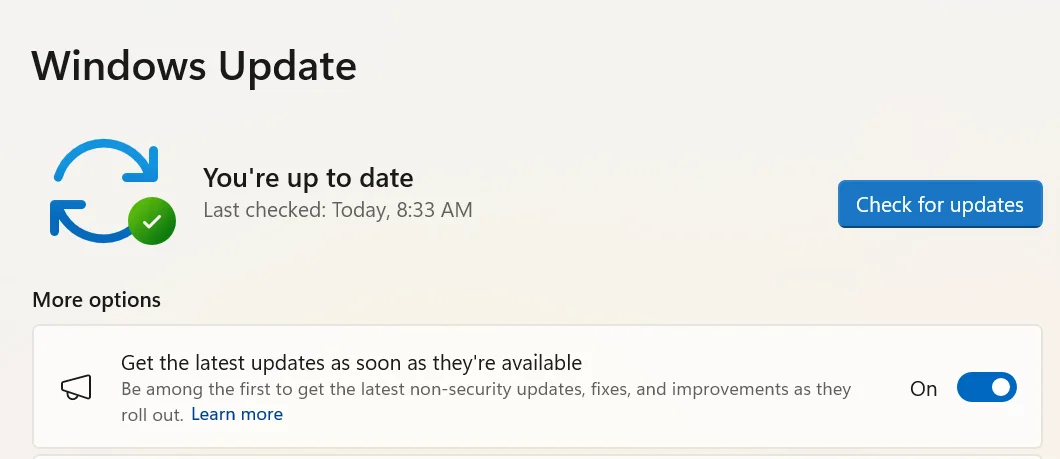
Click the image to enlarge.
Next, make sure WSL itself is also up-to-date. You can use this command (run in a terminal with Run as administrator):
wsl --update

Click the image to enlarge.
Don't forget that WSL and the operating system running within it must be compatible. It's not uncommon for a recent Linux OS to require support for certain features that are only available in an updated version of WSL.
If everything is correct, you can start the Ubuntu update. Launch its instance and check its current version with this command:
lsb_release -a
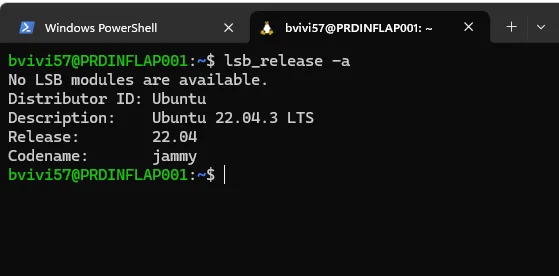
Click the image to enlarge.
In my example, I'm starting from version 22.04, which is a LTS (Long-term support) version.
For your information, Ubuntu versions are released according to the following schedule:
- An LTS version every 2 years, usually in April. These versions have a default support period of 5 years. They are recommended for production environments, as they are very stable but may not always include the latest versions of packages.
- A standard release is provided every 6 months, with a default support period of 9 months. While these releases offer the latest applications, they may be less stable.
It's often recommended to stay on the same branch and wait for a new LTS (Long Term Support) release before upgrading to the next version, rather than switching between standard releases. However, it is still possible to move from an LTS version to a standard version, and vice versa, if the version difference is not too significant (and always moving upwards).
The first step is to update all packages in your current version using the following commands:
sudo apt update
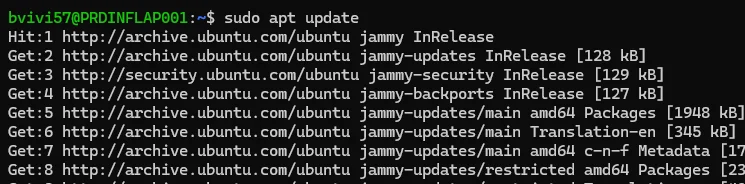
Click the image to enlarge.
sudo apt upgrade
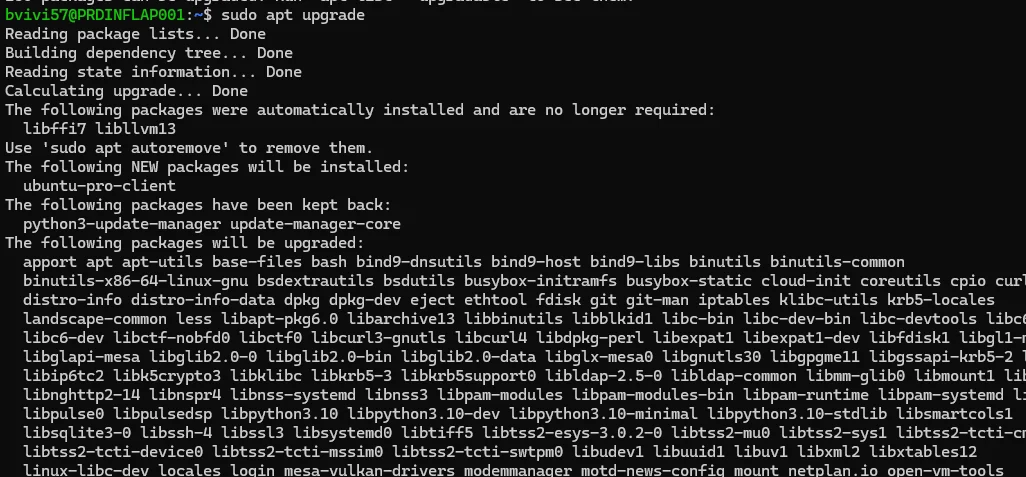
Click the image to enlarge.
Once this operation is complete, you need to ensure that systemd is supported within WSL. Initially, the service manager was not supported, and its integration arrived with WSL2 in September 2022.
For the latest Ubuntu releases, enabling support for it is mandatory; otherwise, you may encounter an error during the upgrade.
To do this, within your WSL distribution, you need to edit (or create) the file /etc/wsl.conf and add the following content:
[boot]
systemd=true
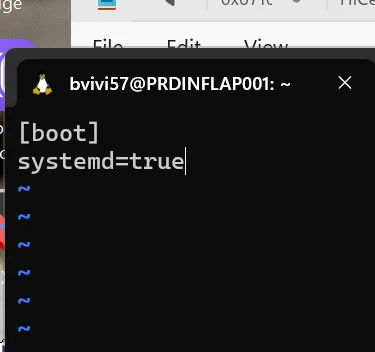
Click the image to enlarge.
You can then exit your WSL instance and ensure that it has terminated properly using the command (to be executed in a terminal running in run as administrator mode):
wsl --shutdown
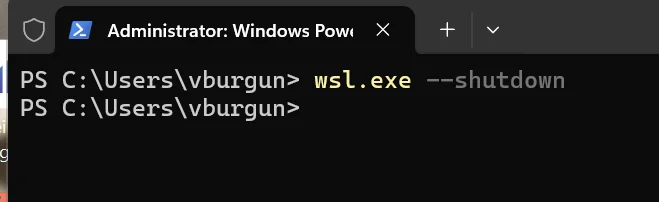
Click the image to enlarge.
Then, you can restart your distribution. It may take slightly longer to start.
You can verify systemd support with the following command: systemctl list-unit-files --type=service
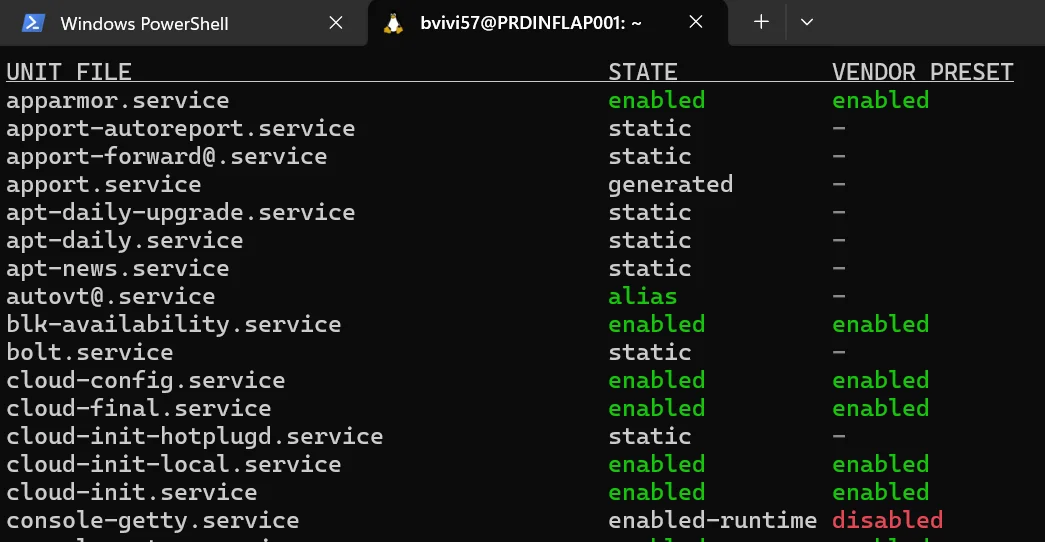
Click the image to enlarge.
If everything is OK, you can proceed by editing the file /etc/update-manager/release-upgrades.
It is in this file that you can specify the branch to search for a new version of Ubuntu.
Strangely, I had to choose "normal" for the system to offer me the 24.04 version. It's best to try both the "normal" and "lts" options to see if a version is offered during the upgrade command.
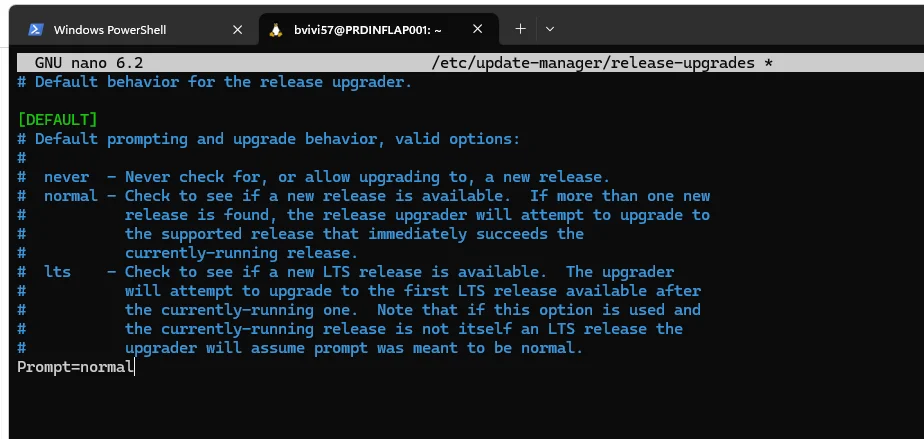
Click the image to enlarge.
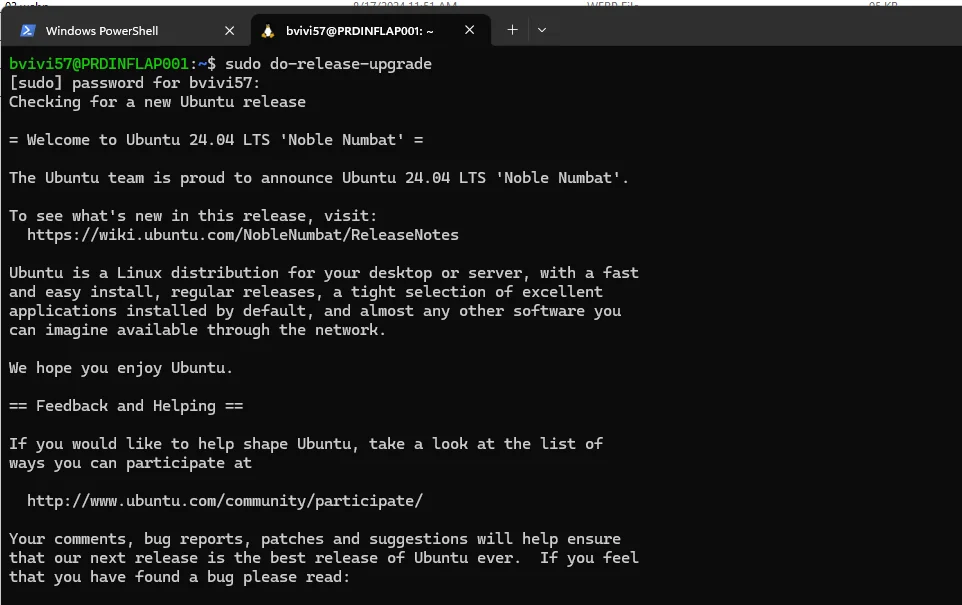
The upgrade command itself is simply:
sudo do-release-upgrade
Click the image to enlarge.
If a version is found, it will be offered to you, and all you have to do is confirm...and wait for the operation to complete.
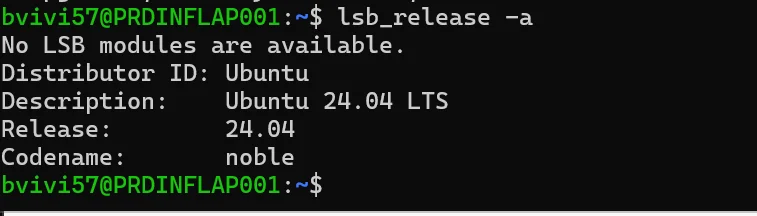
If everything goes well after a few minutes, you can restart your WSL instance and check the version of the operating system using the same command:
lsb_release -a
Click the image to enlarge.
Side effects (ansible/vmware)
Be aware that when upgrading Ubuntu from one version to another, it may cause incompatibilities with tools or libraries already installed before the upgrade.
As you can read in this article, I use Ansible within WSL and have configured it to query a vCenter instance as an inventory.
With the upgrade to Ubuntu 24.04, Python 3.12 is used. However, this makes the python3-pyvmomi module, available in the OS's default repository, non-functional. Unfortunately, this module is necessary for Ansible to interact with VMware.
Therefore, it needs to be uninstalled and switched to the pip version.
sudo apt remove python3-pyvmomi
In the latest releases of Ubuntu, using pip to install a Python library is not recommended, as Ubuntu prefers using libraries packaged in the OS's repository.
However, you can override this warning with the option: --break-system-packages
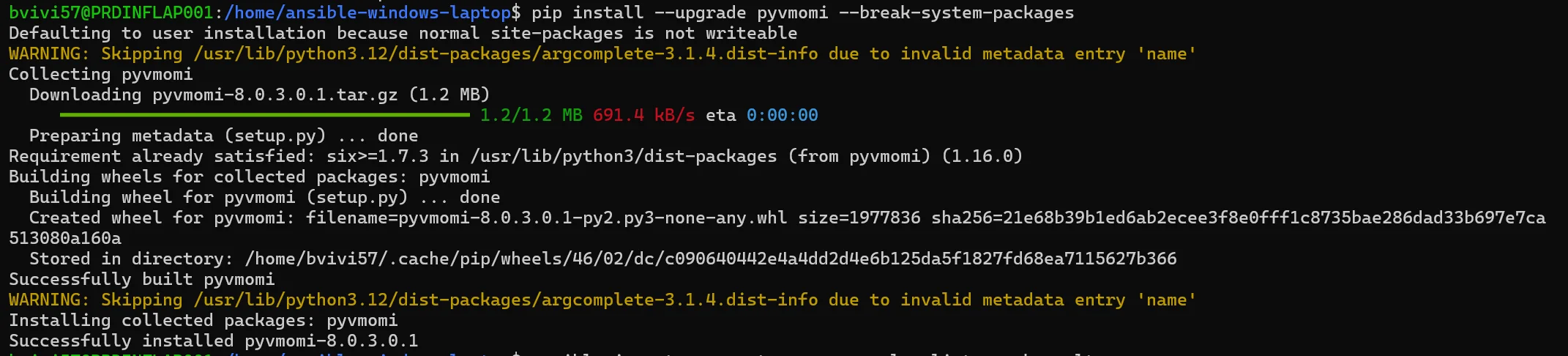
pip install --upgrade pyvmomi --break-system-packages
Click the image to enlarge.
This may not be ideal, nor should it be used for all your needs, but in this case and at the time of writing this article, it is the only solution to have the latest version of the pyvmomi library, which supports Python 3.12.
Perhaps one day the available package will be updated and it will again be possible to use it, but in the meantime, this allows Ansible to work with VMware.
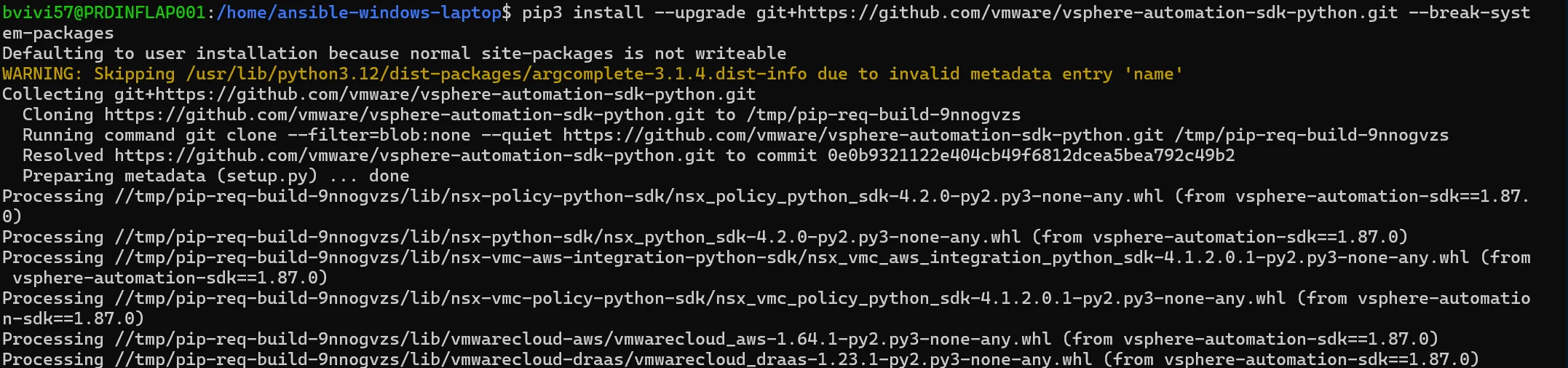
Don't forget to also install the vsphere-automation-sdk-python library, also from pip, using the following command:
pip3 install --upgrade git+https://github.com/vmware/vsphere-automation-sdk-python.git --break-system-packages
Click the image to enlarge.
Conclusion
Feel free to keep your WSL configuration up to date. There's no need to rush to update with every new release, but after a few months, it's always worth switching to the latest available OS versions.
However, remember that you may encounter some issues that you will need to fix. For those who are hesitant about encountering malfunctions, know that it is always possible to install multiple instances of the same OS under WSL.
In my example, I could have kept my Ubuntu version at 20.04 and deployed another instance in 22.04. At that time, I would have had the choice to run either distribution.
But I would have had to recreate all my configuration on the new instance. It's a matter of choice; both strategies are possible. The important thing is not to let your OS(es) deployed in WSL become obsolete.