Step 2: Deploying the VMs
- Initial cluster: 9 PhotonOS VMs based on a preconfigured template.
- Deploying VMs on VMware using OpenTofu/Terraform.
- Organizing the code into multiple files, similar to how a company would do it.
- Launching and validating the deployment.
Legacy version of the Kubernetes cookbook
This article is part of the first version of the cookbook (VMware and PhotonOS). A new version, on XCP-ng and Rocky Linux, is being published: server deployment is covered in the Step 01 - Template Packer and Step 02 - Terraform Deployment. The article remains online for reference.
Introduction
Once the target architecture is defined, it is possible to deploy the components of the architecture.
To maintain a logic of automation and industrialization, it is interesting to use infrastructure as code to describe your servers and deploy them.
Whether you use Terraform, or its recent fork OpenTofu, the logic described here remains applicable.
Recap of the components to be deployed
The initial cluster consists of 9 VMs running PhotonOS and based on a preconfigured template to be managed by Ansible.
The network configuration relies on my mini infrastructure with servers in a LAN zone (192.168.10/24) and a WEB zone (192.168.5.0/24).
| Name | Role | Network Zone | IP | vCPU | Memory (Go) | Disk (Go) |
|---|---|---|---|---|---|---|
| prdk8sctp501 | Control Plane | LAN | 192.168.10.71 | 4 | 4 | 30 |
| prdk8sctp502 | Control Plane | LAN | 192.168.10.72 | 4 | 4 | 30 |
| prdk8sctp503 | Control Plane | LAN | 192.168.10.73 | 4 | 4 | 30 |
| prdk8snod501 | Worker LAN | LAN | 192.168.10.81 | 2 | 2 | 30 |
| prdk8snod502 | Worker LAN | LAN | 192.168.10.82 | 2 | 2 | 30 |
| prdk8snod511 | Worker DMZ | WEB | 192.168.5.81 | 2 | 2 | 30 |
| prdk8snod512 | Worker DMZ | WEB | 192.168.5.82 | 2 | 2 | 30 |
| prdk8snlb501 | Load Balancer LAN | LAN | 192.168.10.91 | 1 | 1 | 30 |
| prdk8snlb511 | Load Balancer DMZ | WEB | 192.168.5.91 | 1 | 1 | 30 |
OpenTofu (Terraform) configuration
The logic described here is specific to my use, but I have tried to apply an approach that can be found in companies with a division of the code into multiple files. There are several possible ways and different perspectives on the subject; feel free to adapt the examples below to your personal use.
Prerequisites
OpenTofu (Terraform) will need to interact with the target platform hosting the VMs, which is currently VMware.
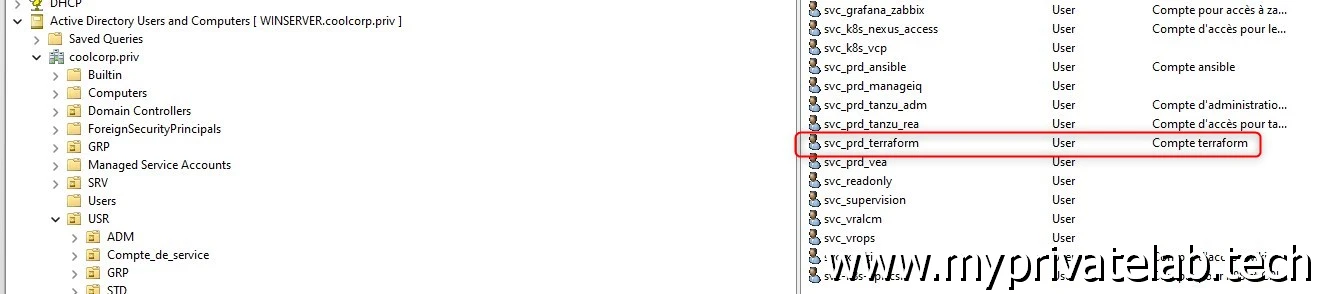
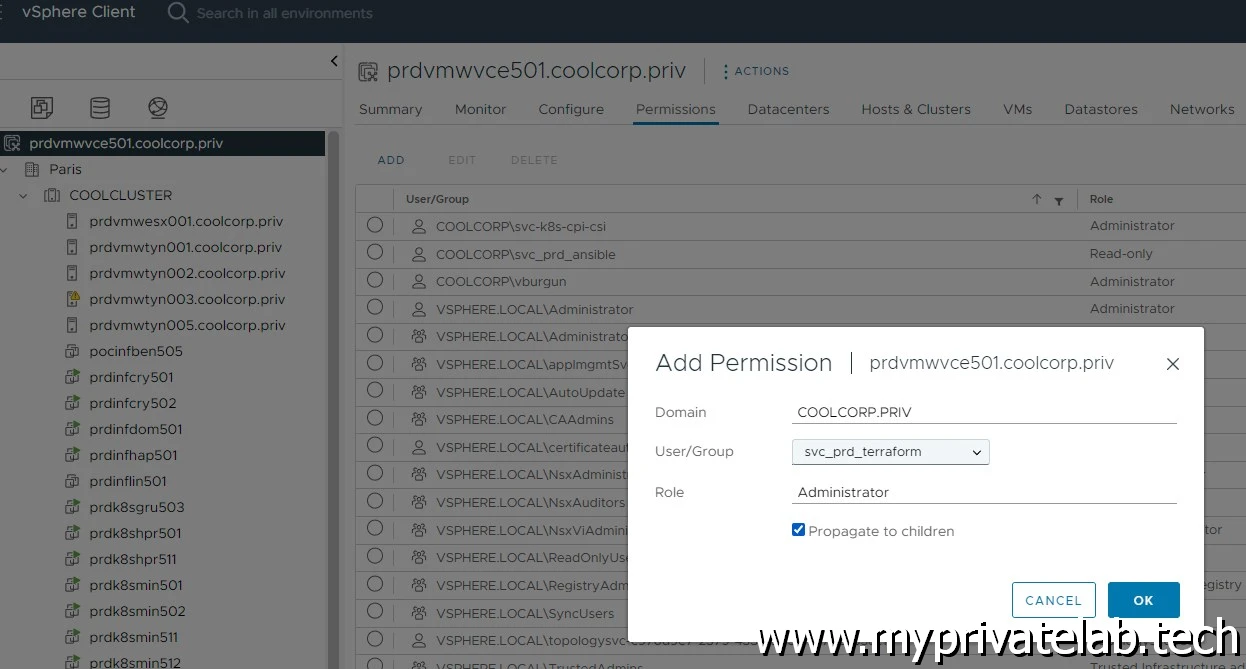
Therefore, OpenTofu will interact with the vCenter through a service account present in the Active Directory. Unlike what I described with Ansible, here you need an account with sufficient privileges because it will be used to create the VMs. As always, it is recommended to use a dedicated account and limit its permissions to the necessary scope. In my case, since I only have a minimal infrastructure available, the account has all rights on the platform.
Click the image to enlarge.
Click the image to enlarge.
provider.tf
        provider "vsphere" {
            user           = var.vsphere_user
            password       = var.vsphere_password
            vsphere_server = var.vsphere_server

            # If you have a self-signed cert
            allow_unverified_ssl = true
          }
This file allows you to specify the providers to use for managing the target platform. In this case, VMware, there is only one provider to declare, and you need to provide it with the necessary parameters for its operation.
As it is, there is no need to specify the actual values. Instead, we will use a variable file, hence the use of the prefix var.variable_name
variables.tf
This file allows you to group all the variables to be used into sections. This simplifies configuration changes because, in theory and except for specific cases, only this file needs to be modified if you later need to change the VM configurations.
The naming of the variables is free, and even though it's not perfect here, I encourage you to remember a specific logic that simplifies reading.
Arbitrarily, the file contains a first section dedicated to VMware variables. This includes the vCenter URL, the datacenter, the cluster, etc. It also includes the tags to be applied to each VM and their associated categories. This will allow you to use this information as an inventory group when executing Ansible playbooks.
It also indicates the name of the source template to be used, which Terraform will use to clone it and create new VMs.
To avoid displaying a password associated with the vCenter connection account in the file, the variable is not explicitly filled, but it will be requested during the execution of OpenTofu (terraform) and will not be displayed on the screen (sensitive = true).
        #######################Variables vsphere

        variable "vsphere_user" {
          default = "[email protected]"
        }

        variable "vsphere_password" {
            type = string
            sensitive = true
        }

        variable "vsphere_server" {
          default = "vcenter.coolcorp.priv"
        }

        variable "vsphere_datacenter" {
          default = "Paris"
        }

        variable "vsphere_cluster" {
          default = "COOLCLUSTER"
        }

        variable "vsphere_template" {
          default = "prdtplk8s501"
        }

        variable "tag_primary_category" {
          default = "CAT-COOLCORP-APPS"
        }

        variable "tag_apps" {
          default = "TAG-COOLCORP-APPS-K8S"
        }

        variable "tag_role_category" {
          default = "CAT-COOLCORP-ROLE"
        }

        variable "tag_role_master" {
          default = "TAG-COOLCORP-ROLE-MASTER"
        }

        variable "tag_role_worker" {
          default = "TAG-COOLCORP-ROLE-WORKER"
        }

        variable "tag_role_haproxy" {
          default = "TAG-COOLCORP-ROLE-HAPROXY"
        }

        variable "tag_network_category" {
          default = "CAT-COOLCORP-NETWORK"
        }

        variable "tag_network_lan" {
          default = "TAG-COOLCORP-NETWORK-LAN"
        }

        variable "tag_network_web" {
          default = "TAG-COOLCORP-NETWORK-WEB"
        }
The other section concerns common variables related to network configuration. This includes the gateway, DNS servers, and VLAN names.
        ################################### Variables Network

        variable "vlan_lan" {
          default = "LAN"
        }

        variable "vlan_dmz" {
          default = "VLAN_WEB"
        }

        variable "gateway_lan" {
          default = "192.168.10.253"
        }

        variable "gateway_dmz" {
          default = "192.168.5.253"
        }

        variable "default_dns" {
          default = "192.168.10.35"
        }

        variable "default_dns_domain" {
          default = "coolcorp.priv"
        }
Next, we reach the server section, with subsections for each server. The pattern repeats for each VM.
There is no information about the disk size, because even if it were possible to specify it, we can leave the default disk size of the template.
        #################################### Variables serveur

####Detail Master 1

variable "master_01_name" {
  default = "prdk8sctp501"
}

variable "master_01_dts" {
  default = "prddtsvol007"
}

variable "master_01_cpu_number" {
  default = "4"
}

variable "master_01_memory_size" {
  default = "4096"
}

variable "master_01_ip_address" {
  default = "192.168.10.71"
}

variable "master_01_ip_netmask" {
  default = "24"
}


####Detail Master 2

variable "master_02_name" {
  default = "prdk8sctp502"
}

variable "master_02_dts" {
  default = "prddtsvol004"
}

variable "master_02_cpu_number" {
  default = "4"
}

variable "master_02_memory_size" {
  default = "4096"
}

variable "master_02_ip_address" {
  default = "192.168.10.72"
}

variable "master_02_ip_netmask" {
  default = "24"
}

####Detail Master 3

variable "master_03_name" {
  default = "prdk8sctp503"
}

variable "master_03_dts" {
  default = "prddtsvol001"
}

variable "master_03_cpu_number" {
  default = "4"
}

variable "master_03_memory_size" {
  default = "4096"
}

variable "master_03_ip_address" {
  default = "192.168.10.73"
}

variable "master_03_ip_netmask" {
  default = "24"
}

####Detail Worker 1 (LAN)

variable "worker_lan_01_name" {
  default = "prdk8snod501"
}

variable "worker_lan_01_dts" {
  default = "prddtsvol005"
}

variable "worker_lan_01_cpu_number" {
  default = "2"
}

variable "worker_lan_01_memory_size" {
  default = "2048"
}

variable "worker_lan_01_ip_address" {
  default = "192.168.10.81"
}

variable "worker_lan_01_ip_netmask" {
  default = "24"
}

####Detail Worker 2 (LAN)

variable "worker_lan_02_name" {
  default = "prdk8snod502"
}

variable "worker_lan_02_dts" {
  default = "prddtsvol002"
}

variable "worker_lan_02_cpu_number" {
  default = "2"
}

variable "worker_lan_02_memory_size" {
  default = "2048"
}

variable "worker_lan_02_ip_address" {
  default = "192.168.10.82"
}

variable "worker_lan_02_ip_netmask" {
  default = "24"
}

####Detail Worker 1 (DMZ)

variable "worker_dmz_01_name" {
  default = "prdk8snod511"
}

variable "worker_dmz_01_dts" {
  default = "prddtsvol006"
}

variable "worker_dmz_01_cpu_number" {
  default = "2"
}

variable "worker_dmz_01_memory_size" {
  default = "2048"
}

variable "worker_dmz_01_ip_address" {
  default = "192.168.5.81"
}

variable "worker_dmz_01_ip_netmask" {
  default = "24"
}

####Detail Worker 2 (DMZ)

variable "worker_dmz_02_name" {
  default = "prdk8snod512"
}

variable "worker_dmz_02_dts" {
  default = "prddtsvol007"
}

variable "worker_dmz_02_cpu_number" {
  default = "2"
}

variable "worker_dmz_02_memory_size" {
  default = "2048"
}

variable "worker_dmz_02_ip_address" {
  default = "192.168.5.82"
}

variable "worker_dmz_02_ip_netmask" {
  default = "24"
}

####Detail HA Proxy LAN
variable "haproxy_lan_01_name" {
  default = "prdk8snlb501"
}

variable "haproxy_lan_01_dts" {
  default = "prddtsvol004"
}

variable "haproxy_lan_01_cpu_number" {
  default = "1"
}

variable "haproxy_lan_01_memory_size" {
  default = "1024"
}

variable "haproxy_lan_01_ip_address" {
  default = "192.168.10.91"
}

variable "haproxy_lan_01_ip_netmask" {
  default = "24"
}

####Detail HA Proxy DMZ

variable "haproxy_dmz_01_name" {
  default = "prdk8snlb511"
}

variable "haproxy_dmz_01_dts" {
  default = "prddtsvol001"
}

variable "haproxy_dmz_01_cpu_number" {
  default = "1"
}

variable "haproxy_dmz_01_memory_size" {
  default = "1024"
}

variable "haproxy_dmz_01_ip_address" {
  default = "192.168.5.91"
}

variable "haproxy_dmz_01_ip_netmask" {
  default = "24"
}
vsphere.tf
This is the first file containing Infrastructure as Code (IAC) code. It describes the vSphere part, and the objects described here can be reused in other files
        data "vsphere_datacenter" "dc" {
            name = "${var.vsphere_datacenter}"
          }

          data "vsphere_compute_cluster" "cluster" {
            name          = "${var.vsphere_cluster}"
            datacenter_id = "${data.vsphere_datacenter.dc.id}"
          }

          data "vsphere_network" "network_lan" {
            name          = "${var.vlan_lan}"
            datacenter_id = "${data.vsphere_datacenter.dc.id}"
          }

          data "vsphere_network" "network_dmz" {
            name          = "${var.vlan_dmz}"
            datacenter_id = "${data.vsphere_datacenter.dc.id}"
          }

          data "vsphere_virtual_machine" "template" {
            name          = "${var.vsphere_template}"
            datacenter_id = "${data.vsphere_datacenter.dc.id}"
          }
server_xx.tf
These files describe each server; they will rely on the variables described previously, as well as on the vSphere objects.
The logic for describing these elements is generally always the same.
We initialize an object specific to the chosen provider, give it a name, and then define its properties. Since we have a variable file, we use those variables to set the property values.
Note that an object can become a property of another object.
For example, in the first file master_01.tf, associated with the first control plane, the vsphere_datastore object named datastore_vmaster_01 relies on the variable master_01_dts from the variable.tf file, but also reuses the vsphere_datacenter object named dc, which is declared in vsphere.tf.
This same vsphere_datastore object will then be used in the properties of the vsphere_virtual_machine object named vm_master_01.
Each object is described in the provider's documentation, and if you start to get lost, a tool like ChatGPT can help. It's not magic, but for generating IAC, AI tools are very useful, as long as you understand at least a little bit what you are doing and the answers provided.
        data "vsphere_datastore" "datastore_master_01" {
            name          = "${var.master_01_dts}"
            datacenter_id = "${data.vsphere_datacenter.dc.id}"
          }


          resource "vsphere_virtual_machine" "vm_master_01" {
            name             = "${var.master_01_name}"
            resource_pool_id = "${data.vsphere_compute_cluster.cluster.resource_pool_id}"
            datastore_id     = "${data.vsphere_datastore.datastore_master_01.id}"

            num_cpus = "${var.master_01_cpu_number}"
            memory   = "${var.master_01_memory_size}"
            guest_id = "${data.vsphere_virtual_machine.template.guest_id}"
            tags = ["${vsphere_tag.tag_apps.id}","${vsphere_tag.tag_apps_master.id}","${vsphere_tag.tag_net_lan.id}"]

            scsi_type = "${data.vsphere_virtual_machine.template.scsi_type}"

            network_interface {
              network_id   = "${data.vsphere_network.network_lan.id}"
              adapter_type = "${data.vsphere_virtual_machine.template.network_interface_types[0]}"
            }

            disk {
              label            = "disk0"
              size             = "${data.vsphere_virtual_machine.template.disks.0.size}"
              eagerly_scrub    = "${data.vsphere_virtual_machine.template.disks.0.eagerly_scrub}"
              thin_provisioned = "${data.vsphere_virtual_machine.template.disks.0.thin_provisioned}"
            }

            extra_config = {
              "disk.EnableUUID" = "TRUE"
          }

            clone {
              template_uuid = "${data.vsphere_virtual_machine.template.id}"
               customize {
                linux_options {
                  host_name = "${var.master_01_name}"
                  domain    = "coolcorp.priv"
                }
                  network_interface {
                    ipv4_address = "${var.master_01_ip_address}"
                    ipv4_netmask = "${var.master_01_ip_netmask}"
                }
                ipv4_gateway = "${var.gateway_lan}"
                dns_suffix_list = ["${var.default_dns_domain}"]
                dns_server_list = ["${var.default_dns}"]
             }
            }
          }
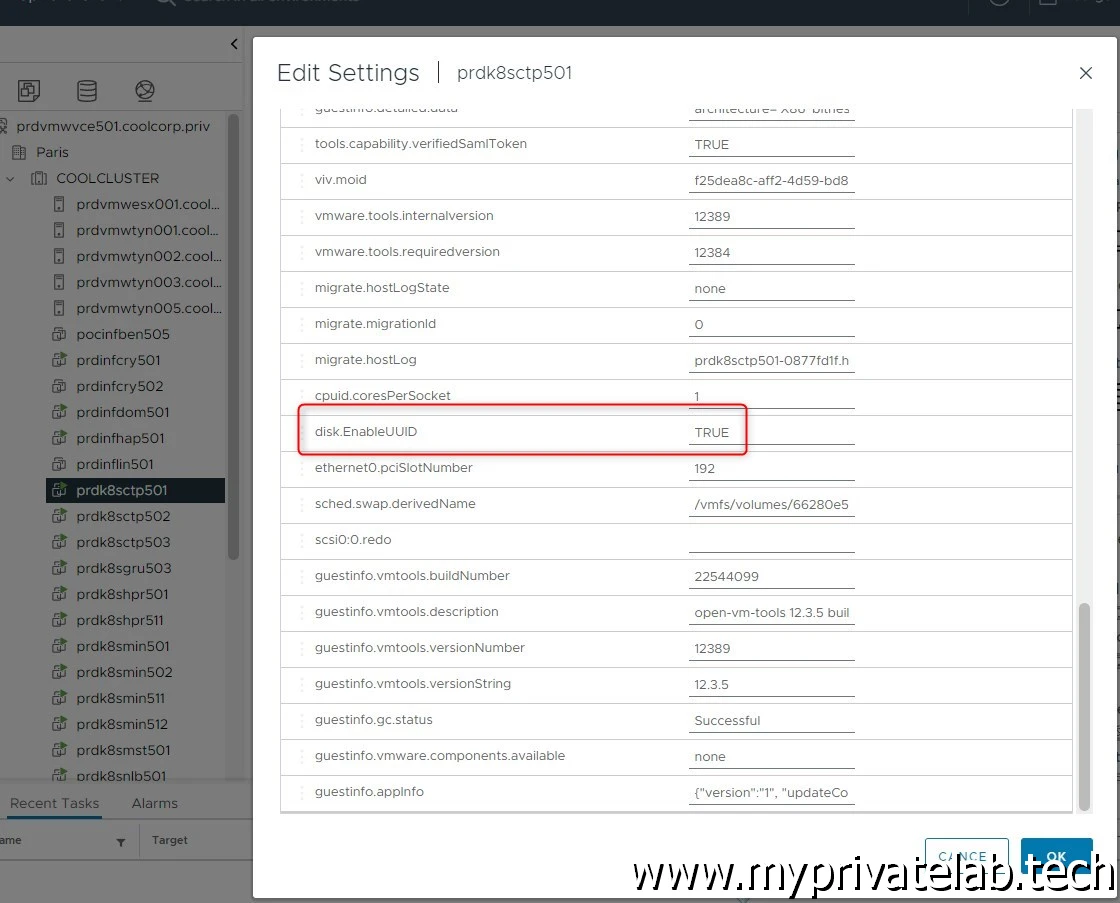
A small Kubernetes-specific detail: to be fully compatible with the vSphere storage driver and to be able to mount Persistent Volumes easily, the VMs must have an advanced option disk.EnableUUID set to true.
For those who are not using Infrastructure as Code, this corresponds to this parameter in the advanced view of the VMs:
Click the image to enlarge.
The logic is exactly the same for the rest of the VMs; we will find a file per server. Only the names of the variables will be different.
master_02.tf
        data "vsphere_datastore" "datastore_master_02" {
            name          = "${var.master_02_dts}"
            datacenter_id = "${data.vsphere_datacenter.dc.id}"
          }


          resource "vsphere_virtual_machine" "vm_master_02" {
            name             = "${var.master_02_name}"
            resource_pool_id = "${data.vsphere_compute_cluster.cluster.resource_pool_id}"
            datastore_id     = "${data.vsphere_datastore.datastore_master_02.id}"

            num_cpus = "${var.master_02_cpu_number}"
            memory   = "${var.master_02_memory_size}"
            guest_id = "${data.vsphere_virtual_machine.template.guest_id}"
            tags = ["${vsphere_tag.tag_apps.id}","${vsphere_tag.tag_apps_master.id}","${vsphere_tag.tag_net_lan.id}"]

            scsi_type = "${data.vsphere_virtual_machine.template.scsi_type}"

            network_interface {
              network_id   = "${data.vsphere_network.network_lan.id}"
              adapter_type = "${data.vsphere_virtual_machine.template.network_interface_types[0]}"
            }

            disk {
              label            = "disk0"
              size             = "${data.vsphere_virtual_machine.template.disks.0.size}"
              eagerly_scrub    = "${data.vsphere_virtual_machine.template.disks.0.eagerly_scrub}"
              thin_provisioned = "${data.vsphere_virtual_machine.template.disks.0.thin_provisioned}"
            }

              extra_config = {
              "disk.EnableUUID" = "TRUE"
          }

            clone {
              template_uuid = "${data.vsphere_virtual_machine.template.id}"
               customize {
                linux_options {
                  host_name = "${var.master_02_name}"
                  domain    = "coolcorp.priv"
                }
                  network_interface {
                    ipv4_address = "${var.master_02_ip_address}"
                    ipv4_netmask = "${var.master_02_ip_netmask}"
                }
                ipv4_gateway = "${var.gateway_lan}"
                dns_suffix_list = ["${var.default_dns_domain}"]
                dns_server_list = ["${var.default_dns}"]
             }
            }
          }
master_03.tf
        data "vsphere_datastore" "datastore_master_03" {
            name          = "${var.master_03_dts}"
            datacenter_id = "${data.vsphere_datacenter.dc.id}"
          }


          resource "vsphere_virtual_machine" "vm_master_03" {
            name             = "${var.master_03_name}"
            resource_pool_id = "${data.vsphere_compute_cluster.cluster.resource_pool_id}"
            datastore_id     = "${data.vsphere_datastore.datastore_master_03.id}"

            num_cpus = "${var.master_03_cpu_number}"
            memory   = "${var.master_03_memory_size}"
            guest_id = "${data.vsphere_virtual_machine.template.guest_id}"
            tags = ["${vsphere_tag.tag_apps.id}","${vsphere_tag.tag_apps_master.id}","${vsphere_tag.tag_net_lan.id}"]

            scsi_type = "${data.vsphere_virtual_machine.template.scsi_type}"

            network_interface {
              network_id   = "${data.vsphere_network.network_lan.id}"
              adapter_type = "${data.vsphere_virtual_machine.template.network_interface_types[0]}"
            }

            disk {
              label            = "disk0"
              size             = "${data.vsphere_virtual_machine.template.disks.0.size}"
              eagerly_scrub    = "${data.vsphere_virtual_machine.template.disks.0.eagerly_scrub}"
              thin_provisioned = "${data.vsphere_virtual_machine.template.disks.0.thin_provisioned}"
            }

              extra_config = {
              "disk.EnableUUID" = "TRUE"
          }

           clone {
              template_uuid = "${data.vsphere_virtual_machine.template.id}"
               customize {
                linux_options {
                  host_name = "${var.master_03_name}"
                  domain    = "coolcorp.priv"
                }
                  network_interface {
                    ipv4_address = "${var.master_03_ip_address}"
                    ipv4_netmask = "${var.master_03_ip_netmask}"
                }
                ipv4_gateway = "${var.gateway_lan}"
                dns_suffix_list = ["${var.default_dns_domain}"]
                dns_server_list = ["${var.default_dns}"]
             }
            }
          }
worker_lan_01.tf
data "vsphere_datastore" "datastore_lan_worker_01" {
    name          = "${var.worker_lan_01_dts}"
    datacenter_id = "${data.vsphere_datacenter.dc.id}"
  }

  resource "vsphere_virtual_machine" "vm_lan_worker_01" {
    name             = "${var.worker_lan_01_name}"
    resource_pool_id = "${data.vsphere_compute_cluster.cluster.resource_pool_id}"
    datastore_id     = "${data.vsphere_datastore.datastore_lan_worker_01.id}"

    num_cpus = "${var.worker_lan_01_cpu_number}"
    memory   = "${var.worker_lan_01_memory_size}"
    guest_id = "${data.vsphere_virtual_machine.template.guest_id}"
    tags = ["${vsphere_tag.tag_apps.id}","${vsphere_tag.tag_apps_worker.id}","${vsphere_tag.tag_net_lan.id}"]

    scsi_type = "${data.vsphere_virtual_machine.template.scsi_type}"

    network_interface {
      network_id   = "${data.vsphere_network.network_lan.id}"
      adapter_type = "${data.vsphere_virtual_machine.template.network_interface_types[0]}"
    }

    disk {
      label            = "disk0"
      size             = "${data.vsphere_virtual_machine.template.disks.0.size}"
      eagerly_scrub    = "${data.vsphere_virtual_machine.template.disks.0.eagerly_scrub}"
      thin_provisioned = "${data.vsphere_virtual_machine.template.disks.0.thin_provisioned}"
    }

        extra_config = {
      "disk.EnableUUID" = "TRUE"
  }

   clone {
      template_uuid = "${data.vsphere_virtual_machine.template.id}"
       customize {
        linux_options {
          host_name = "${var.worker_lan_01_name}"
          domain    = "coolcorp.priv"
        }
          network_interface {
            ipv4_address = "${var.worker_lan_01_ip_address}"
            ipv4_netmask = "${var.worker_lan_01_ip_netmask}"
        }
        ipv4_gateway = "${var.gateway_lan}"
        dns_suffix_list = ["${var.default_dns_domain}"]
        dns_server_list = ["${var.default_dns}"]
     }
    }
  }
worker_lan_02.tf
data "vsphere_datastore" "datastore_lan_worker_02" {
    name          = "${var.worker_lan_02_dts}"
    datacenter_id = "${data.vsphere_datacenter.dc.id}"
  }

  resource "vsphere_virtual_machine" "vm_lan_worker_02" {
    name             = "${var.worker_lan_02_name}"
    resource_pool_id = "${data.vsphere_compute_cluster.cluster.resource_pool_id}"
    datastore_id     = "${data.vsphere_datastore.datastore_lan_worker_02.id}"

    num_cpus = "${var.worker_lan_02_cpu_number}"
    memory   = "${var.worker_lan_02_memory_size}"
    guest_id = "${data.vsphere_virtual_machine.template.guest_id}"
    tags = ["${vsphere_tag.tag_apps.id}","${vsphere_tag.tag_apps_worker.id}","${vsphere_tag.tag_net_lan.id}"]

    scsi_type = "${data.vsphere_virtual_machine.template.scsi_type}"

    network_interface {
      network_id   = "${data.vsphere_network.network_lan.id}"
      adapter_type = "${data.vsphere_virtual_machine.template.network_interface_types[0]}"
    }

    disk {
      label            = "disk0"
      size             = "${data.vsphere_virtual_machine.template.disks.0.size}"
      eagerly_scrub    = "${data.vsphere_virtual_machine.template.disks.0.eagerly_scrub}"
      thin_provisioned = "${data.vsphere_virtual_machine.template.disks.0.thin_provisioned}"
    }

      extra_config = {
      "disk.EnableUUID" = "TRUE"
  }

   clone {
      template_uuid = "${data.vsphere_virtual_machine.template.id}"
       customize {
        linux_options {
          host_name = "${var.worker_lan_02_name}"
          domain    = "coolcorp.priv"
        }
          network_interface {
            ipv4_address = "${var.worker_lan_02_ip_address}"
            ipv4_netmask = "${var.worker_lan_02_ip_netmask}"
        }
        ipv4_gateway = "${var.gateway_lan}"
        dns_suffix_list = ["${var.default_dns_domain}"]
        dns_server_list = ["${var.default_dns}"]
     }
    }
  }
worker_dmz_01.tf
data "vsphere_datastore" "datastore_dmz_worker_01" {
    name          = "${var.worker_dmz_01_dts}"
    datacenter_id = "${data.vsphere_datacenter.dc.id}"
  }

  resource "vsphere_virtual_machine" "vm_worker_01_dmz" {
    name             = "${var.worker_dmz_01_name}"
    resource_pool_id = "${data.vsphere_compute_cluster.cluster.resource_pool_id}"
    datastore_id     = "${data.vsphere_datastore.datastore_dmz_worker_01.id}"

    num_cpus = "${var.worker_dmz_01_cpu_number}"
    memory   = "${var.worker_dmz_01_memory_size}"
    guest_id = "${data.vsphere_virtual_machine.template.guest_id}"
    tags = ["${vsphere_tag.tag_apps.id}","${vsphere_tag.tag_apps_worker.id}","${vsphere_tag.tag_net_web.id}"]

    scsi_type = "${data.vsphere_virtual_machine.template.scsi_type}"

    network_interface {
      network_id   = "${data.vsphere_network.network_dmz.id}"
      adapter_type = "${data.vsphere_virtual_machine.template.network_interface_types[0]}"
    }

    disk {
      label            = "disk0"
      size             = "${data.vsphere_virtual_machine.template.disks.0.size}"
      eagerly_scrub    = "${data.vsphere_virtual_machine.template.disks.0.eagerly_scrub}"
      thin_provisioned = "${data.vsphere_virtual_machine.template.disks.0.thin_provisioned}"
    }

      extra_config = {
      "disk.EnableUUID" = "TRUE"
  }

   clone {
      template_uuid = "${data.vsphere_virtual_machine.template.id}"
       customize {
        linux_options {
          host_name = "${var.worker_dmz_01_name}"
          domain    = "coolcorp.priv"
        }
          network_interface {
            ipv4_address = "${var.worker_dmz_01_ip_address}"
            ipv4_netmask = "${var.worker_dmz_01_ip_netmask}"
        }
        ipv4_gateway = "${var.gateway_dmz}"
        dns_suffix_list = ["${var.default_dns_domain}"]
        dns_server_list = ["${var.default_dns}"]
     }
    }
  }
worker_dmz_02.tf
data "vsphere_datastore" "datastore_dmz_worker_02" {
    name          = "${var.worker_dmz_02_dts}"
    datacenter_id = "${data.vsphere_datacenter.dc.id}"
  }

  resource "vsphere_virtual_machine" "vm_worker_02_dmz" {
    name             = "${var.worker_dmz_02_name}"
    resource_pool_id = "${data.vsphere_compute_cluster.cluster.resource_pool_id}"
    datastore_id     = "${data.vsphere_datastore.datastore_dmz_worker_02.id}"

    num_cpus = "${var.worker_dmz_02_cpu_number}"
    memory   = "${var.worker_dmz_02_memory_size}"
    guest_id = "${data.vsphere_virtual_machine.template.guest_id}"
    tags = ["${vsphere_tag.tag_apps.id}","${vsphere_tag.tag_apps_worker.id}","${vsphere_tag.tag_net_web.id}"]

    scsi_type = "${data.vsphere_virtual_machine.template.scsi_type}"

    network_interface {
      network_id   = "${data.vsphere_network.network_dmz.id}"
      adapter_type = "${data.vsphere_virtual_machine.template.network_interface_types[0]}"
    }

    disk {
      label            = "disk0"
      size             = "${data.vsphere_virtual_machine.template.disks.0.size}"
      eagerly_scrub    = "${data.vsphere_virtual_machine.template.disks.0.eagerly_scrub}"
      thin_provisioned = "${data.vsphere_virtual_machine.template.disks.0.thin_provisioned}"
    }

      extra_config = {
      "disk.EnableUUID" = "TRUE"
  }

   clone {
      template_uuid = "${data.vsphere_virtual_machine.template.id}"
       customize {
        linux_options {
          host_name = "${var.worker_dmz_02_name}"
          domain    = "coolcorp.priv"
        }
          network_interface {
            ipv4_address = "${var.worker_dmz_02_ip_address}"
            ipv4_netmask = "${var.worker_dmz_02_ip_netmask}"
        }
        ipv4_gateway = "${var.gateway_dmz}"
        dns_suffix_list = ["${var.default_dns_domain}"]
        dns_server_list = ["${var.default_dns}"]
     }
    }
  }
haproxy_lan_01.tf
data "vsphere_datastore" "datastore_lan_haproxy_01" {
    name          = "${var.haproxy_lan_01_dts}"
    datacenter_id = "${data.vsphere_datacenter.dc.id}"
  }

  resource "vsphere_virtual_machine" "vm_lan_haproxy_01" {
    name             = "${var.haproxy_lan_01_name}"
    resource_pool_id = "${data.vsphere_compute_cluster.cluster.resource_pool_id}"
    datastore_id     = "${data.vsphere_datastore.datastore_lan_haproxy_01.id}"

    num_cpus = "${var.haproxy_lan_01_cpu_number}"
    memory   = "${var.haproxy_lan_01_memory_size}"
    guest_id = "${data.vsphere_virtual_machine.template.guest_id}"
    tags = ["${vsphere_tag.tag_apps.id}","${vsphere_tag.tag_apps_haproxy.id}","${vsphere_tag.tag_net_lan.id}"]

    scsi_type = "${data.vsphere_virtual_machine.template.scsi_type}"

    network_interface {
      network_id   = "${data.vsphere_network.network_lan.id}"
      adapter_type = "${data.vsphere_virtual_machine.template.network_interface_types[0]}"
    }

    disk {
      label            = "disk0"
      size             = "${data.vsphere_virtual_machine.template.disks.0.size}"
      eagerly_scrub    = "${data.vsphere_virtual_machine.template.disks.0.eagerly_scrub}"
      thin_provisioned = "${data.vsphere_virtual_machine.template.disks.0.thin_provisioned}"
    }

   clone {
      template_uuid = "${data.vsphere_virtual_machine.template.id}"
       customize {
        linux_options {
          host_name = "${var.haproxy_lan_01_name}"
          domain    = "coolcorp.priv"
        }
          network_interface {
            ipv4_address = "${var.haproxy_lan_01_ip_address}"
            ipv4_netmask = "${var.haproxy_lan_01_ip_netmask}"
        }
        ipv4_gateway = "${var.gateway_lan}"
        dns_suffix_list = ["${var.default_dns_domain}"]
        dns_server_list = ["${var.default_dns}"]
     }
    }
  }
haproxy_dmz_01.tf
data "vsphere_datastore" "datastore_dmz_ha_proxy_01" {
    name          = "${var.haproxy_dmz_01_dts}"
    datacenter_id = "${data.vsphere_datacenter.dc.id}"
  }

  resource "vsphere_virtual_machine" "vm_haproxy_01_dmz" {
    name             = "${var.haproxy_dmz_01_name}"
    resource_pool_id = "${data.vsphere_compute_cluster.cluster.resource_pool_id}"
    datastore_id     = "${data.vsphere_datastore.datastore_dmz_ha_proxy_01.id}"

    num_cpus = "${var.haproxy_dmz_01_cpu_number}"
    memory   = "${var.haproxy_dmz_01_memory_size}"
    guest_id = "${data.vsphere_virtual_machine.template.guest_id}"
    tags = ["${vsphere_tag.tag_apps.id}","${vsphere_tag.tag_apps_haproxy.id}","${vsphere_tag.tag_net_web.id}"]

    scsi_type = "${data.vsphere_virtual_machine.template.scsi_type}"

    network_interface {
      network_id   = "${data.vsphere_network.network_dmz.id}"
      adapter_type = "${data.vsphere_virtual_machine.template.network_interface_types[0]}"
    }

    disk {
      label            = "disk0"
      size             = "${data.vsphere_virtual_machine.template.disks.0.size}"
      eagerly_scrub    = "${data.vsphere_virtual_machine.template.disks.0.eagerly_scrub}"
      thin_provisioned = "${data.vsphere_virtual_machine.template.disks.0.thin_provisioned}"
    }

   clone {
      template_uuid = "${data.vsphere_virtual_machine.template.id}"
       customize {
        linux_options {
          host_name = "${var.haproxy_dmz_01_name}"
          domain    = "coolcorp.priv"
        }
          network_interface {
            ipv4_address = "${var.haproxy_dmz_01_ip_address}"
            ipv4_netmask = "${var.haproxy_dmz_01_ip_netmask}"
        }
        ipv4_gateway = "${var.gateway_dmz}"
        dns_suffix_list = ["${var.default_dns_domain}"]
        dns_server_list = ["${var.default_dns}"]
     }
    }
  }
backend.tf (optional)
As described in the article on IAC, where Terraform Cloud is presented, it is possible to track your actions and host a copy of the tfstates in a specialized solution.
To recap, OpenTofu (Terraform) is based on the principle of state, where the tool saves all its actions in a repository. Each time it runs, OpenTofu (Terraform) compares what it has done previously with what is described in the code. If it sees a difference, it will proceed with the modifications.
At no point does it concern itself with what is actually deployed. If you lose your state file (tfstates), or if you initiate changes manually, then for OpenTofu (Terraform), you will no longer be consistent with its current state. This means that it will attempt to recreate objects that are already present, or it simply will not be able to execute its actions.
This is why it is useful to use platforms like Terraform Cloud, not only to secure your repository, but also to share it with your colleagues and allow executions from different locations.
To do this, you can use a "backend.tf" file that will contain the URL of your Infrastructure as Code (IAC) repository. The example below is for Terraform Cloud, but other solutions exist.
If you do not configure this correctly, OpenTofu (Terraform) will consider your local directory as the source of the repository. Feel free to take a look at the dedicated article to better understand this point.
        terraform {
            cloud {
              organization = "COOLCORP-IAC"
               hostname = "app.terraform.io"
              workspaces {
                name = "kub.coolcorp.priv"
              }
            }
          }
Deployment
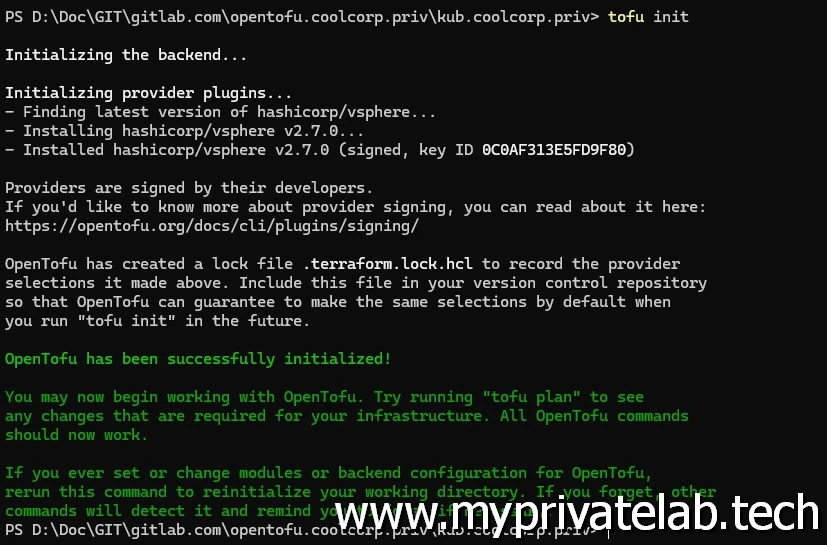
Now it is time to start creating the VMs. To do this, simply go to the directory containing the files and run the tofu (terraform) binary with the correct parameters.
We start with the init option, which will initialize the repository (in the local directory) and retrieve the necessary providers (in this case, the VMware provider).
Click the image to enlarge.
Next, we proceed with the plan parameter. This will read the code, ensure that it is consistent, and display the operations to be performed: creation, modification, or deletion of objects.
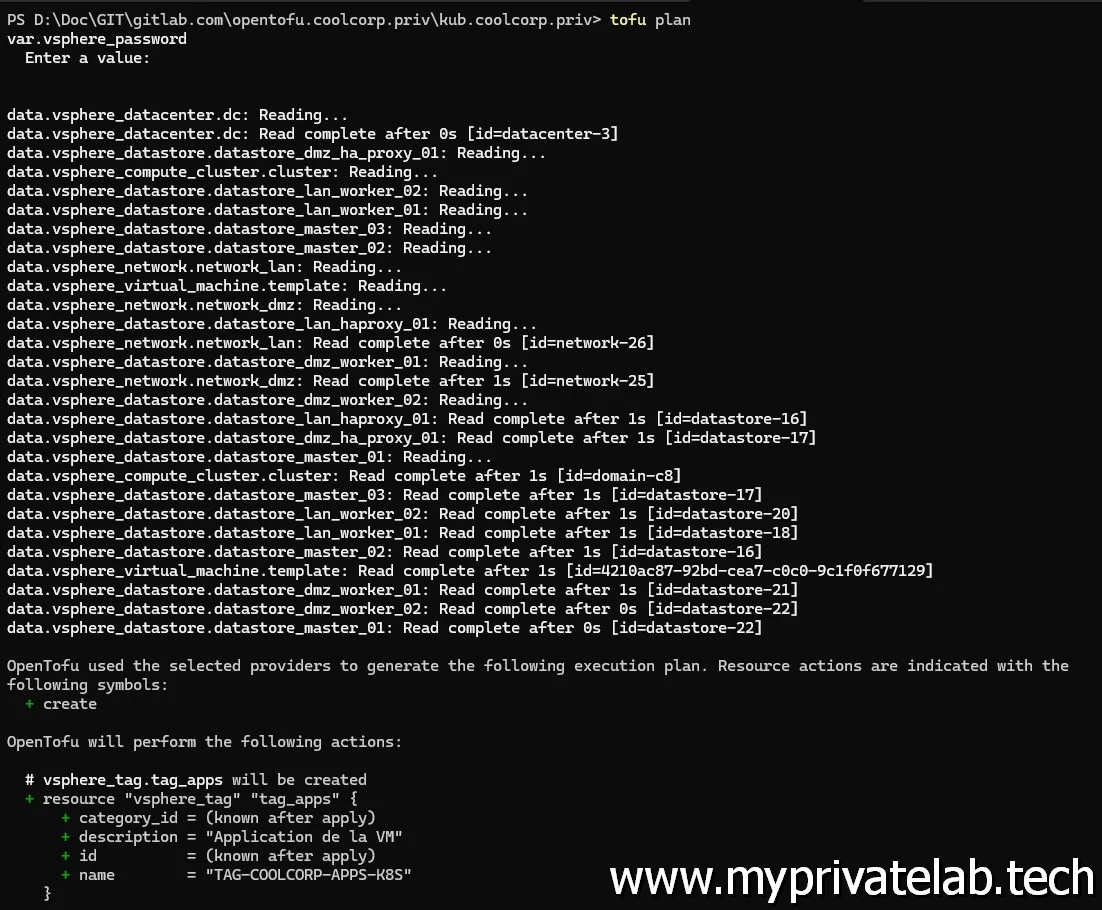
Click the image to enlarge.
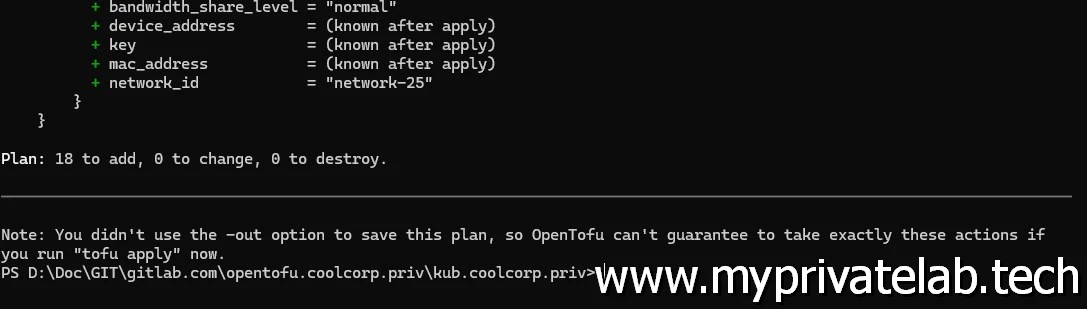
Click the image to enlarge.
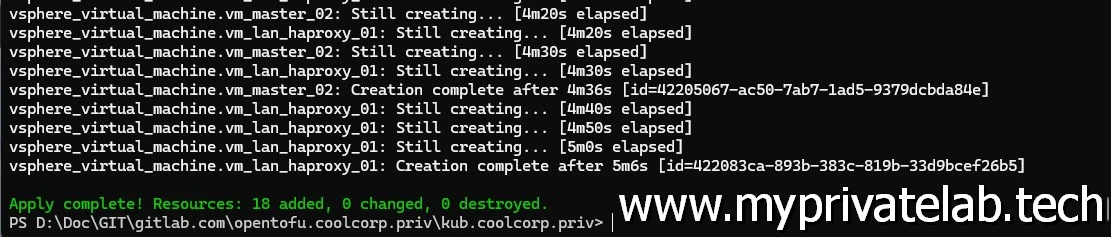
If you agree with the results displayed, you can run the final command apply, remembering to validate in order to actually launch the deployment.
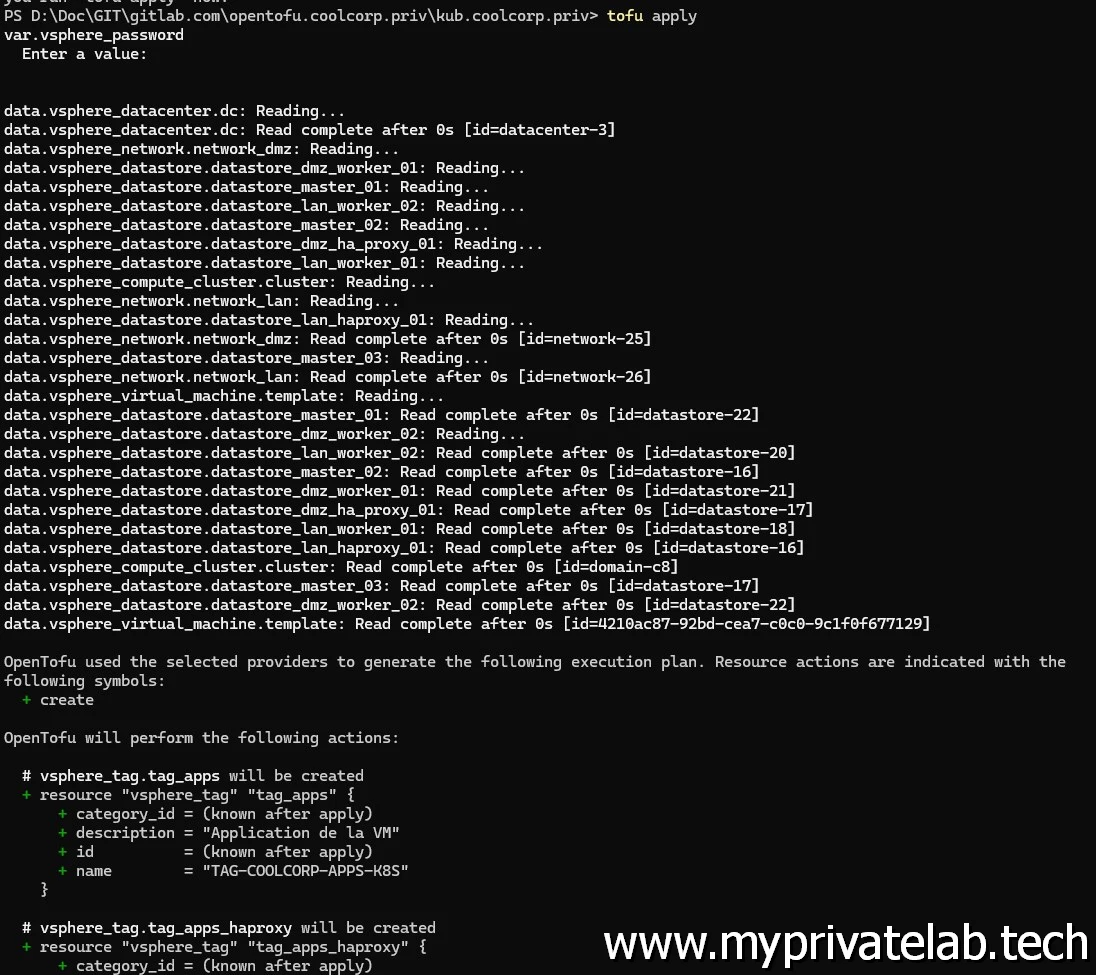
Click the image to enlarge.
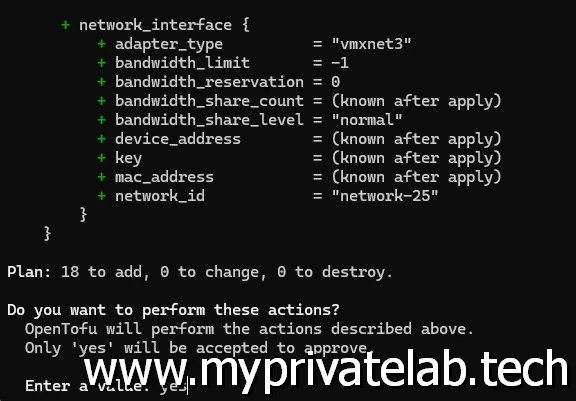
Click the image to enlarge.
Note that for the plan and apply parameters, the password for the vCenter access account is required because it was not explicitly specified in the variables.tf file for security reasons (as explained in the article about Terraform, other methods are possible to secure variables that pose risks).
After only a few minutes, the 9 VMs are deployed and operational. The only remaining step is the creation of DNS entries. Since I have a Microsoft DNS server in my lab, there is no automatic creation. There are providers available to automate this process, but since I haven't tested them, I can't discuss them.
Click the image to enlarge.
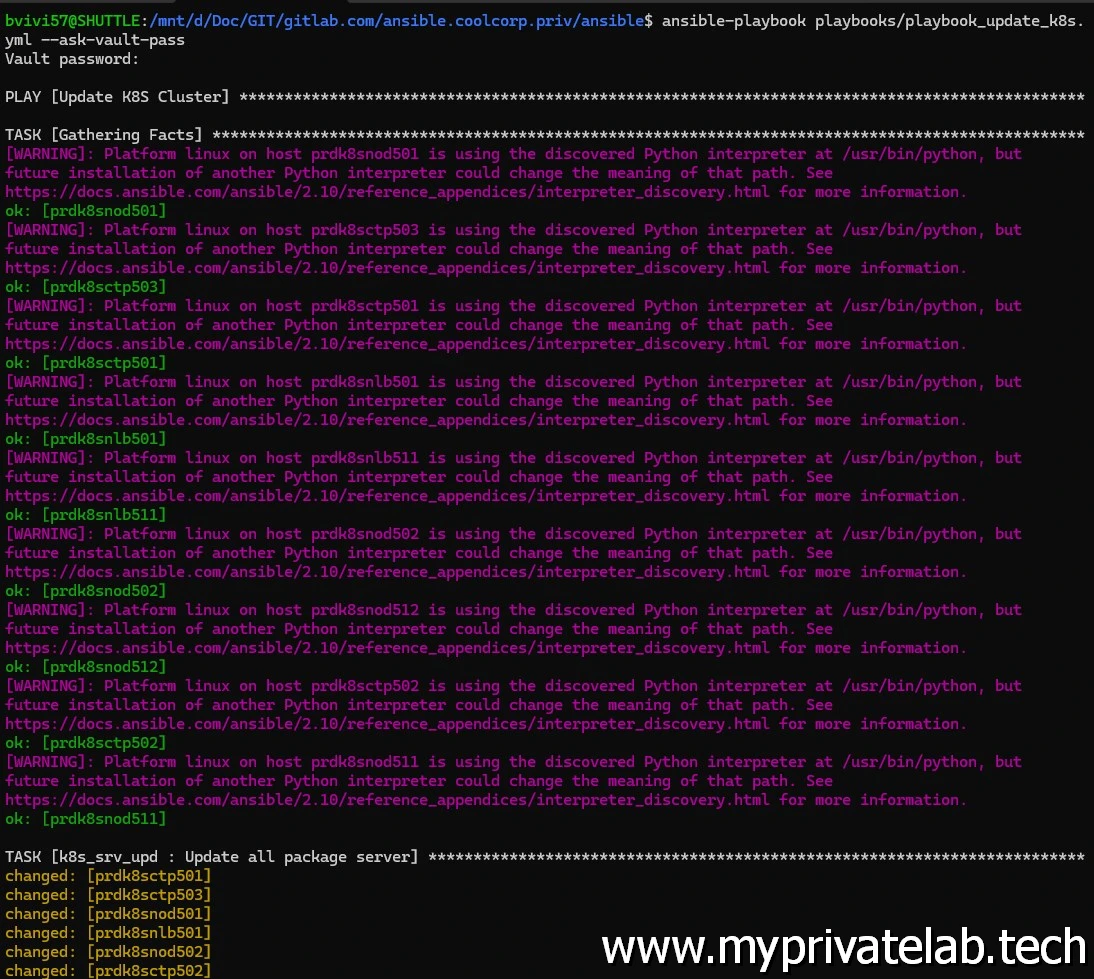
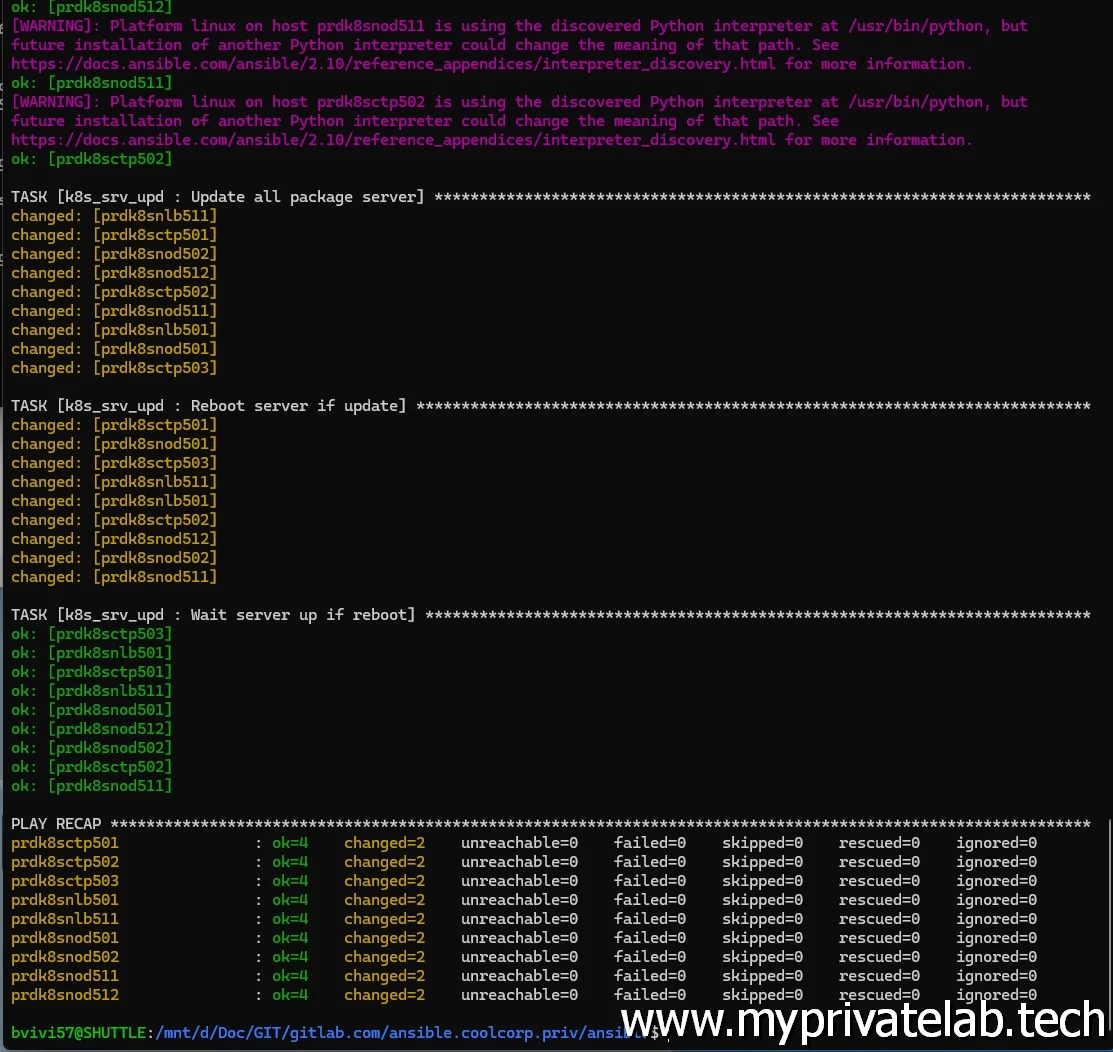
The final test involves running an initial Ansible playbook based on the dedicated article that I invite you to read if you have not already done so.
Since all VMs are created from a template with the minimum configuration required to be accessible by an Ansible instance under Windows thanks to WSL, it is possible to configure the OS of each VM and prepare the Kubernetes configuration.
Because the VMs have tags, and the Ansible instance is configured to use vCenter as the inventory source, accessing each VM is simplified. (More information in the dedicated article).
Click the image to enlarge.
Click the image to enlarge.
Conclusion
This article is not intended to be an advanced tutorial for OpenTofu/Terraform, but I hope it has provided you with some useful information and demonstrates the benefits of IAC, especially in deploying a Kubernetes cluster that requires multiple nodes to be operational (excluding test/demo clusters). Once again, other methods are possible, and a different organization of OpenTofu (Terraform) files is conceivable. The important thing is to remember a logic that makes sense to you and can be common to your other deployments.
To continue the cookbook with the next step, click here